User manual · Python 3.9+
erdscope
Turn a database, application code, config—or any combination—into one interactive, portable schema.
Choose what you want to do
How erdscope works
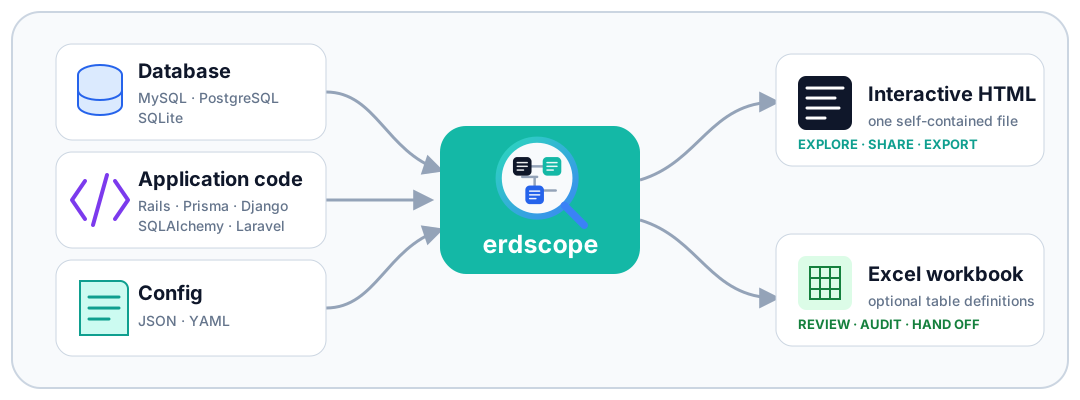
erdscope generates interactive ER diagrams and documented schema definitions — a
self-contained ER diagram and, optionally, an Excel table-definition
workbook — from a live MySQL, PostgreSQL, or SQLite database. It ships as a
single Python file (erd.py, no install step) with zero required dependencies.
Config notes: turns the diagram into a documented schema: attach
design decisions, operational rules, and ADR links to tables and relationships, validated against
the real schema so a note can never point at something that doesn't exist. Config
groups: draws a rounded, titled frame around a set of related
tables, purely visual and draggable by its title.
There are three input sources, and any one of them is enough — a database is no longer required:
- Database (MySQL / PostgreSQL / SQLite) — the source of truth for tables, columns,
comments, indexes, and real foreign keys, read from the database catalog
(
information_schemaon MySQL,pg_catalogon PostgreSQL,PRAGMAqueries on SQLite). - Application code (
--models: Rails / Prisma / Django / SQLAlchemy / Laravel) — adds association semantics the database alone can't express (has_many :through, polymorphic, …), and can stand on its own when there is no DB to point at. - Config file (a
tables:section) — declare or patch a schema by hand: add tables, columns, indexes, and associations, or override and delete what the DB or code got wrong.
They merge in that order — database → code → config, each layer refining the previous. The database wins on physical facts (column types, indexes, primary keys); code and config win on associations and logical names; config always has the final say. With no database URL, nothing is connected and no password is prompted.
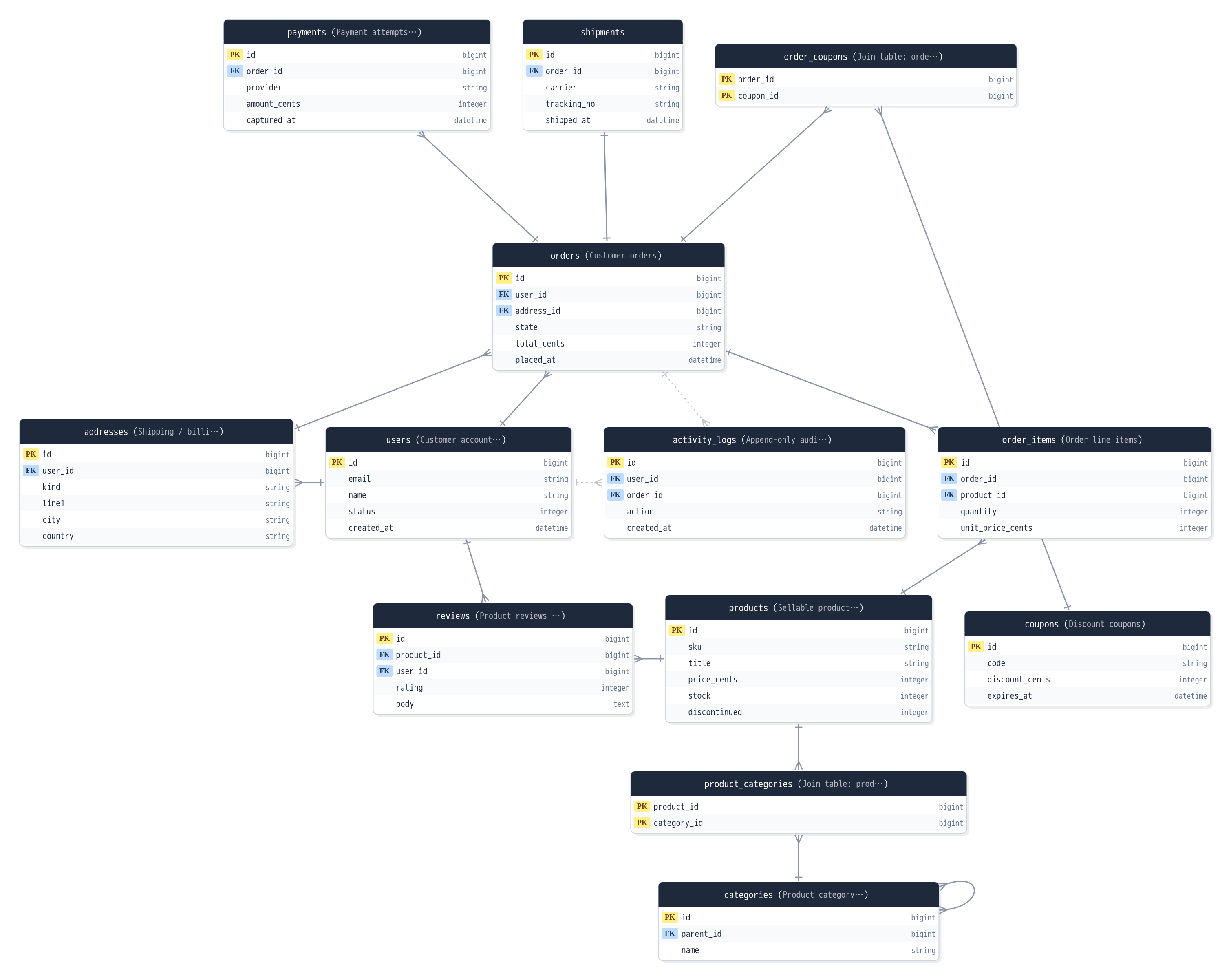
Try the live demo → — a small e-commerce schema with comments, indexes, real FKs, and one inferred relation. Everything in the demo is a single self-contained HTML file, generated the same way your own diagram will be.
Database truth
Tables, columns (full SQL types, defaults, extras), comments, indexes, and real FK constraints — read directly from the database.
Code semantics on top
--models merges in Rails/Prisma/Django/SQLAlchemy/Laravel associations; DB FKs already covered by an association are deduplicated, the rest get a "DB FK" badge.
Interactive exploration
Focus with depth and direction, two-level hiding, table and column search, named views, share links.
Readable layouts
Viewport-aware packing, drag-to-snap, multi-select align/distribute, Auto-tidy, undo/redo.
Exports
PNG, SVG, Mermaid, PlantUML, DBML — each with copy and download — plus an Excel workbook.
Logical names
A table's DB comment doubles as a searchable logical name, shown alongside the physical name.
Notes
Attach design decisions, operational rules, and ADR links to a table, a relation, or the whole diagram — validated against the real schema, searchable alongside tables and columns.
Quickstart #
No database of your own yet? erdscope demo builds a small sample e-commerce
SQLite database in a temp directory, generates the diagram, and opens it in your browser
— nothing to download or set up:
pip install erdscope
erdscope demo
It runs the normal pipeline underneath, so every other flag on this page still applies
(erdscope demo --excel defs.xlsx, erdscope demo --only 'order*', ...);
add --no-open to skip launching the browser. See the CLI
reference below for the full list.
erdscope mysql://readonly@127.0.0.1:3306/myapp_production -o erd.html

# enrich with association semantics parsed from application code (optional)
erdscope mysql://readonly@127.0.0.1:3306/myapp_production \
        --models /path/to/rails/app -o erd.html

# also write a table-definition workbook
erdscope mysql://readonly@127.0.0.1:3306/myapp_production \
        --excel table_definitions.xlsx -o erd.html

# PostgreSQL: same thing — schema defaults to public, override with ?schema=name
erdscope postgres://readonly@127.0.0.1:5432/myapp_production -o erd.html

# SQLite: just point at the file — no server, nothing to install
erdscope sqlite:///path/to/app.db -o erd.html
Open the resulting erd.html in any browser — it's a single file with everything
inlined, so it can be emailed, committed to a wiki, or dropped into a shared drive.
Passwords
Use a read-only database account, and leave the password out of the connection URL — it would otherwise land in your shell history. erdscope resolves the password in this order:
- Password embedded in the URL (
mysql://user:pass@host/db) — avoid this in practice. - The
MYSQL_PWD(MySQL) /PGPASSWORD(PostgreSQL) environment variable, if set. - Otherwise, if standard input is an interactive terminal, a hidden password prompt
(never touches
argvor shell history).
sqlite:// reads a local file, so it needs no account or password — the above applies only to the networked engines.
user:@host/db (an explicit, empty password) also counts as "password provided" and
skips the prompt. On PostgreSQL, answering the prompt with an empty line leaves
PGPASSWORD unset, so libpq's own ~/.pgpass lookup still applies.Behind a bastion / SSH tunnel
ssh -N -L 3307:db-host:3306 bastion &
erdscope mysql://readonly@127.0.0.1:3307/myapp_production -o erd.html
Installation & requirements #
Install from PyPI to get the erdscope command:
pip install erdscope        # or: pipx install erdscope
erdscope mysql://readonly@127.0.0.1:3306/myapp -o erd.html
Prefer not to install anything? erd.py
is a single, dependency-free file — download it and run it with any Python 3.9+, identically
to the erdscope command used throughout this manual:
curl -O https://raw.githubusercontent.com/orapli/erdscope/main/erd.py
python3 erd.py mysql://readonly@127.0.0.1:3306/myapp -o erd.html
Requirements: Python 3.9+, nothing else, strictly speaking. Two libraries make the tool
nicer to use but are entirely optional — erdscope degrades gracefully when they're missing.
With the pip package, extras pull them in for you: pip install 'erdscope[mysql]' (PyMySQL),
'erdscope[postgres]' (psycopg), 'erdscope[yaml]' (PyYAML), or
'erdscope[all]':
| Library | Used for | If not installed |
|---|---|---|
| PyMySQL | MySQL connections | Falls back to shelling out to the mysql CLI (must be on PATH) — see Troubleshooting |
| psycopg (or psycopg2) | PostgreSQL connections | Falls back to shelling out to the psql CLI (must be on PATH) — see Troubleshooting |
| (none) | SQLite connections (sqlite:///file.db) | Uses Python's built-in sqlite3 module — always available, nothing to install or fall back to |
| PyYAML | Reading a .yml/.yaml config file | A .json config still works with zero dependencies; pointing at a .yml/.yaml file without PyYAML exits with a clear error |
--excel output needs none of the above — it's written directly via the Python
standard library's zipfile/XML handling, not a spreadsheet package.
Two more libraries are used only by the test suite, never at runtime:
openpyxl (roundtrip-verifies --excel output in unit tests) and
Playwright (drives the generated HTML in the browser E2E suite). Neither is needed to
generate or view diagrams.
Verified versions #
The input formats erdscope parses change rarely, so exact versions matter less than they might seem — newer releases are expected to keep working, though constructs beyond the tested ones may be ignored rather than parsed. For the record, this is what each input is actually verified against:
| Input | Verified against |
|---|---|
| MySQL | 8.4 — real-server integration tests in CI (information_schema); developed against 8.x |
| PostgreSQL | 16 — real-server integration tests in CI (pg_catalog/information_schema) |
| SQLite | the sqlite3 module bundled with CPython (any supported 3.x) |
Rails schema.rb | the format Rails 7.x / 8.x writes (ActiveRecord::Schema[7.x], and the classic un-versioned header) |
| Rails models | the association DSL as of Rails 7.x — has_many/has_one/belongs_to/has_and_belongs_to_many, through:, polymorphic:, STI, concerns, custom base classes; also exercised against Mastodon's real codebase. Dynamically computed definitions (and structure.sql) are out of scope |
| Prisma | the schema language as of Prisma 5 / 6 — @map/@@map, enums, named relations, implicit and explicit m2m, self-relations, composite @@id/@@unique, @@schema |
| Django | models as of Django 4.2 / 5.x — FK / OneToOne / M2M (incl. through=), abstract bases, db_table/db_column, GenericForeignKey (kept as a polymorphic marker); a swappable AUTH_USER_MODEL FK keeps its column and skips the edge |
DBML (sources[].type: dbml) | the syntax documented at dbml.dbdiagram.io — Table/column settings (pk/not null/unique/increment/default/note/inline ref), composite PK via indexes { (a, b) [pk] }, standalone and block Ref (all four symbols), Enum (recognized, consumed). TableGroup, a standalone Note object, and a composite (multi-column) Ref are out of scope this round — see Typed input sources |
Mermaid erDiagram (sources[].type: mermaid.er) | the erDiagram syntax — entity blocks (PK/FK/UK, quoted comments) and relationship lines (all crow's-foot cardinality combinations, solid or dotted line). A single standalone .mmd/.mermaid file only — no Markdown-fence extraction yet |
SQLAlchemy (sources[].type: sqlalchemy.models) | declarative models in both the classic declarative_base() and the 2.0 DeclarativeBase styles — Column(...)/mapped_column(...) with explicit type objects, ForeignKey, relationship(secondary=...) many-to-many. Static AST analysis (never imports the models). 2.0 annotation-only columns and relationships are read from Mapped[...] — type, nullability, target class, and cardinality |
Laravel Eloquent (sources[].type: laravel.models) | hasMany/hasOne/belongsTo/belongsToMany and morphTo/morphMany/morphOne/morphToMany over *.php model files (vendor/ excluded); association-only — columns come from a live DB or another physical source |
| Python | 3.9+ (requires-python); CI runs the latest CPython 3.x |
Config file #
Once the flag list gets long, put it in a file instead. .erdscope.json (or
.erdscope.yml/.yaml, if PyYAML is installed) next to where you run the
tool is picked up automatically — no --config needed. Most keys mirror a CLI option
above (snake_case); engine/host/port/user/database
(the DB connection — engine is "mysql", the default, "postgres"
(also flips the default port to 5432), or "sqlite"), relations (manual FK
declarations), and sources (typed input declarations,
including rails.schema) are config-only, with no CLI equivalent. For
engine: "sqlite",
database is a local file path (not a database name) and host/port/user
must be omitted:
{
  "engine": "sqlite",
  "database": "db/app.db"
}
{
"host": "127.0.0.1",
"port": 3306,
"user": "readonly",
"database": "myapp_production",
"output": "erd.html",
"models": "../myapp",
"max_rows": 15,
"infer_fk": true,
"only": ["user*", "post*"],
"table_map": { "Widget": "crm_widgets" },
"relations": [
{ "table": "orders", "column": "buyer_code", "references": "users" },
{ "table": "profiles", "column": "person_ref", "references": "users",
"one_to_one": true, "name": "owner" }
]
}An explicit CLI flag always wins over the same config key, replacing it entirely (list-valued
keys like only are not merged with the config's). There's deliberately no
password/url key — host/port/user/database
are separate fields specifically so there's nowhere to paste a password into. Leave it out the
same way you would on the CLI: MYSQL_PWD/PGPASSWORD, ~/.my.cnf/~/.pgpass, or the interactive
prompt.
See
erdscope.example.yml
for a fully annotated sample (based on the live demo's schema) with every key explained.
Typed input sources (sources:)
--models/config models auto-detect what kind of project a path is (a Rails
app/models dir, a schema.prisma, a Django project, a Laravel app, a
directory of SQLAlchemy models — or, since a path can also be a db/schema.rb
file, a static Rails schema dump). The config-only
sources: key is the typed alternative: a list of { id, type, path }
objects, each naming its own type so nothing needs detecting. It's independent of
models — both apply if both are given, in the order sources (declared
order) then models (later wins ties, same as today).
version: 1
sources:
  - id: schema
    type: rails.schema
    path: db/schema.rb
  - id: app
    type: rails.models
    path: app/models
The optional top-level version: 1 is a config-format marker — currently the
only supported value, with no other runtime effect; it exists for future config-format
changes to key off.
Every registered framework overlay gets a <name>.models type for free
(rails.models, prisma.models, django.models,
sqlalchemy.models, laravel.models, and any
--adapter-registered overlay's own) — it calls that overlay's parser directly, the
same as auto-detection would, just without the detection step. type isn't checked
against the registry until the source actually runs, so a type an --adapter plugin
registers is valid even though it doesn't exist yet when the config loads.
A typed source that parses nothing — say, a Prisma project accidentally
declared as rails.models — is a hard error naming the source id and the layout
the type expected, never a silently empty diagram. If an empty result is genuinely intended
(a scaffolded but still-empty app/models, for example), opt in per source with
allow_empty: true; a rails.project entry passes the flag down to both
of its expanded halves.
rails.schema is new: it statically parses a Rails
db/schema.rb file — the generated, canonical dump of a Rails app's database schema —
into columns, indexes, primary keys, and foreign keys, entirely by text analysis.
It never executes Ruby, so it works with no Rails runtime, no gems installed, and
no live database — only the checked-in schema.rb file itself. Anything the parser
can't recognize (a dynamic default, an unsupported column type, an unrecognized statement) is
reported as a warning on stderr, never silently dropped; a foreign key it finds becomes an
association carrying the schema FK provenance — see
Edge types.
rails.project is a macro for a whole Rails app root: it expands to
both the rails.schema (<path>/db/schema.rb) and
rails.models (<path>/app/models) halves, whichever exist (a
project with only one of the two still works, with a note on stderr naming what was skipped; a
root with neither is a hard error):
sources:
  - id: app
    type: rails.project
    path: ../myapp
Authority order extends with the new schema layer: physical facts
(column types, indexes, primary keys) follow
Config > live DB > rails.schema > models — a schema.rb dump
reflects the real database more closely than parsed code does, but a live DB read still wins when
both are present. Associations/comments (logical names) follow
Config > models > rails.schema > DB — a declared association still beats
a machine-derived one, but a parsed schema.rb foreign key beats a bare DB FK's
machine-derived name. A schema.rb-derived foreign key that a model's
belongs_to also declares merges into one edge (the model's name wins, provenance
becomes declared) — the same reconciliation a live DB FK already gets.
dbml statically parses a DBML file — tables, columns, indexes, primary keys (including a
composite one via an indexes { (a, b) [pk] } entry), and Ref relationships
(all four cardinality symbols — >/</-/<>
— inline on a column or as a standalone/block statement) — entirely by text analysis, no DBML
library dependency. It shares rails.schema's authority rank (both are declared
physical schema documents), so the same Config > live DB > {rails.schema, dbml}
> models / Config > models > {rails.schema, dbml} > DB
ordering applies, and a Ref-derived foreign key carries the same
schema FK provenance a rails.schema one does. Out of scope this
round: TableGroup, a standalone Note object, and a composite
(multi-column) Ref — each recognized and skipped with a warning naming the file and
line, never silently dropped. Enum and Project blocks are recognized and
consumed with no effect (there's nowhere in erdscope's schema to hang an enum's member list, and
nothing yet reads a source-supplied title).
mermaid.er statically parses a Mermaid erDiagram —
entity blocks (columns, with PK/UK markers and an optional quoted
comment; FK is a display-only hint with no IR effect of its own) and relationship
lines (crow's-foot cardinality mapped onto belongs_to/has_one/
has_and_belongs_to_many, the label becoming the association name). Unlike DBML, a
relationship line names no column, so a Mermaid-derived association never carries a
foreign_key. This is the lowest-authority input source: a Mermaid
column's type is free text jotted down while sketching, so mermaid.er never wins a
physical or logical authority tie against a live DB, rails.schema/dbml,
or even --models code parsing — it only ever supplies what nothing else did. An
entity named only in a relationship line (never given its own { } block) still
produces a (columnless) table for it. MVP scope: a single standalone .mmd/
.mermaid file — no Markdown-fence extraction yet.
sqlalchemy.models statically parses SQLAlchemy declarative models —
a single .py file or a directory (recursive; venv/migrations/tests directories are
skipped) — with AST analysis only: no import, no execution, no SQLAlchemy
dependency. Both the classic declarative_base() style and the 2.0
DeclarativeBase style are recognized: Column(...)/mapped_column(...)
with explicit type objects map onto erdscope's coarse column types,
ForeignKey('table.col') becomes a belongs_to (a has_one when
the column is unique), and relationship(secondary=...) becomes a many-to-many.
Auto-detection recognizes a SQLAlchemy project by content (recursive scan), unlike the marker-file
checks the other frameworks use.
The 2.0 annotation-first style is read from the annotation itself, since the call beside it often
carries no type and no target: id: Mapped[int] = mapped_column(primary_key=True) types
the column from Mapped[int], and
posts: Mapped[list["Post"]] = relationship() resolves its target class out of
Mapped[list["Post"]] with no first argument needed. Nullability follows 2.0's own rule —
Mapped[str] is NOT NULL, Mapped[Optional[str]] and
Mapped[str | None] are nullable — and an explicit nullable= keyword or type
argument always wins over the annotation. Cardinality comes from the annotation too:
Mapped[list["Post"]] (or WriteOnlyMapped/DynamicMapped) is
to-many, a scalar Mapped["User"] is to-one. What still can't be resolved statically:
an annotation naming a genuine union (Mapped[int | str]) or an unrecognised generic
(Mapped[dict[str, Any]]) leaves the column untyped, and a collection annotation on a
column (Mapped[list[int]] — an ARRAY/JSON column) is left untyped rather than
reported as its element type.
laravel.models statically parses a directory of Laravel Eloquent
model *.php files (typically app/Models; vendor/ is always
excluded) — regex analysis over comment-stripped source, the same tactic as
rails.schema: no PHP runtime, never executes the input.
hasMany/hasOne/belongsTo/belongsToMany (the
pivot table kept as through) and the morph* family (polymorphic) become
associations. Like Rails models, this source is association-only / DB-first:
Eloquent models declare no columns, so pair it with a live database (or another physical source)
for the column layer. An unresolvable relation target is a file:line warning, never a
silent omission.
Manual relations
relations declares a relation no other source (a real FK constraint, *_id
name inference, or --models code parsing) can find — an oddly-named column, or one a
gem-provided concern/dynamic association hides from static analysis. It works standalone, with no
--models at all — you can build a complete relation graph from a config file alone.
Precedence is the same as a code-parsed association: applied before --infer-fk runs
(so it also suppresses a wrong name-based guess for that column), and it takes priority over a
real DB FK constraint for the same column. An unknown table/column/target in relations
is always a typo, so it's a hard error, not a silent no-op.
Config as a schema source (tables:)
Beyond settings and relations, a config can carry a tables: section that is
a full input source in its own right — the third layer alongside the database and
--models. It's enough to generate a diagram with no database and no code at all, and it
merges as the highest-priority layer, so it can also patch what the other sources
produce. Use it to describe an unsupported database or framework by hand, or to correct and enrich
a real one.
Declare a schema from scratch — tables is a map of table name → definition:
title: billing
tables:
  customers:
    comment: Customer accounts
    primary_key: id
    columns:
      - { name: id,    type: bigint,  primary: true }
      - { name: email, type: varchar, nullable: false, comment: Login address }
    indexes:
      - { name: idx_customers_email, columns: [email], unique: true }
    associations:
      - { type: has_many, name: invoices, target: invoices }
  invoices:
    columns:
      - { name: id,          type: bigint, primary: true }
      - { name: customer_id, type: bigint }
    associations:
      - { type: belongs_to, name: customer, target: customers, foreign_key: customer_id }
Everything under a table is optional (an absent field means "don't touch" — the lower layer's value
is kept). primary_key may be a single column or a list for a composite key; a
composite foreign key isn't supported yet, so foreign_key is a single column.
title (top-level) names the workbook/diagram when there's no database to take a name
from; the fallback order is title → database name → framework project name → output
filename.
Patch an existing DB/code result instead of declaring from scratch — override an attribute, delete a column or table, or replace a table's list wholesale:
tables:
  orders:
    columns:
      - { name: status,      comment: Order status }   # override just this attribute
      - { name: legacy_flag, drop: true }              # delete a column
    associations:
      - { type: belongs_to, target: users, foreign_key: created_by_id, drop: true }  # delete an edge
  temp_scratch:
    drop: true                                         # delete a whole table
  reports:
    columns_mode: replace                              # discard lower-layer columns first
    columns:
      - { name: id,   type: bigint, primary: true }
      - { name: body, type: text }
The default is additive/override merge; the explicit operations are drop: true (on a
table, column, index, or association) and columns_mode/indexes_mode/associations_mode:
replace (discard the lower layers' list for that table before applying the config's). An
index needs a name; an association drop is targeted by identity (its foreign-key column
and target, plus name for a non-FK relation).
Precedence: physical facts — column types, indexes, primary keys — come from the database, with the config able to override; associations and comments (logical names) prefer code and config over the database. The config layer always wins over both database and code.
Validation is two-pass. Syntax is checked when the config loads — unknown keys
(including misspelled nested ones), wrong value types, and malformed operations are rejected upfront.
References are checked at run time, once every source is merged: a drop or a
foreign_key/target that points at a table or column which doesn't actually
exist is a hard error. A typo never silently produces a wrong diagram.
only/exclude
must be a list of strings, not a bare string (a plain string would otherwise be matched
character-by-character rather than as one pattern), and infer_fk must be a real JSON
boolean, not the string "true"/"false". A mismatched type is now a clear
upfront error rather than a silently wrong diagram — if you hit one, check the value's type
against the example above.Notes: attach design decisions to the diagram #
Config notes: attaches short, plain-text write-ups — design decisions, operational
rules, ADR links — to a table, a specific relation, or the whole diagram. Notes are a read-only
sidecar: they never affect columns, associations, merge precedence, or which source "wins" —
they only decorate a schema that's already been resolved.
notes:
  - id: user-retention
    target: { type: table, table: users }
    title: Retention policy
    text: Suspended accounts are kept for 1 year, then anonymized.
    links:
      - { label: ADR-004, url: https://example.com/adr/004 }

  - id: order-ownership
    target: { type: relation, source_table: orders, target_table: users, foreign_key: user_id }
    text: Orders are kept after a user is anonymized (financial record-keeping).

  - id: diagram-conventions
    target: { type: global }
    title: How to read this diagram
    text: The dotted amber edge is an inferred relation, not a real FK.
Every note needs a config-unique id and a non-empty text; title
and links are optional. Each links[] entry is { label, url } —
url must start with http:// or https://; anything else
(javascript:, data:, a bare string with no scheme) is rejected when the
config loads, before it ever reaches the diagram.
target.type is one of:
table—{ type: table, table: <name> }. Shown in that table's detail panel (right pane) under its own Notes section.relation— identified bysource_table(the side that holds the association — thebelongs_to/FK-holding side for abelongs_to, the owning side for ahas_many— the same side the Associations list in the detail panel shows it on) andtarget_table.foreign_key,name,assoc_type,through, andpolymorphicare optional narrowing keys, needed only when a table has more than one relation to the same target (e.g. two aliasedbelongs_toon different FK columns, like Rails':userand:authorboth pointing atusers, or ahas_manyand ahas_onethat share a name and target, told apart withassoc_type: has_many).assoc_typeis the association kind (has_many/belongs_to/has_one/has_and_belongs_to_many). A note that matches zero or more than one relation is a hard error naming the note'sid— never a silent guess at which edge you meant.global—{ type: global }. Shown in the diagram's legend/overview panel, always visible regardless of which tables are checked/hidden.
Validation is two-pass, exactly like tables: above: syntax is checked
when the config loads (unknown keys, bad types, a malformed target, a non-http(s) link
URL). The target's actual existence is checked after every source is merged — DB,
--models, and config tables: (including its own adds/drops) all resolved —
so a note may reference a table or relation that tables: itself adds, and a note whose
target tables: removes is correctly a hard error, naming the note's id.
Notes render as plain, HTML-escaped text only — no Markdown, no raw HTML, no scripts
— in the table detail panel, next to the matching relation in the Associations list, or in the
legend for a global note. They're also searchable, with a small scope difference
between the two search boxes: the left-pane filter matches every note — table, relation, and
global — with a global match surfacing as its own banner row (a
global note has no table to attach a badge to). The toolbar Highlight marks matching
nodes in the diagram, so it matches table and relation notes (on the table that owns
them) alongside table/column names and comments, but not global notes — find those via
the left-pane filter instead. Either way, a matching row is marked distinctly from a plain
table/column hit so you can tell a note match from a schema match at a glance.
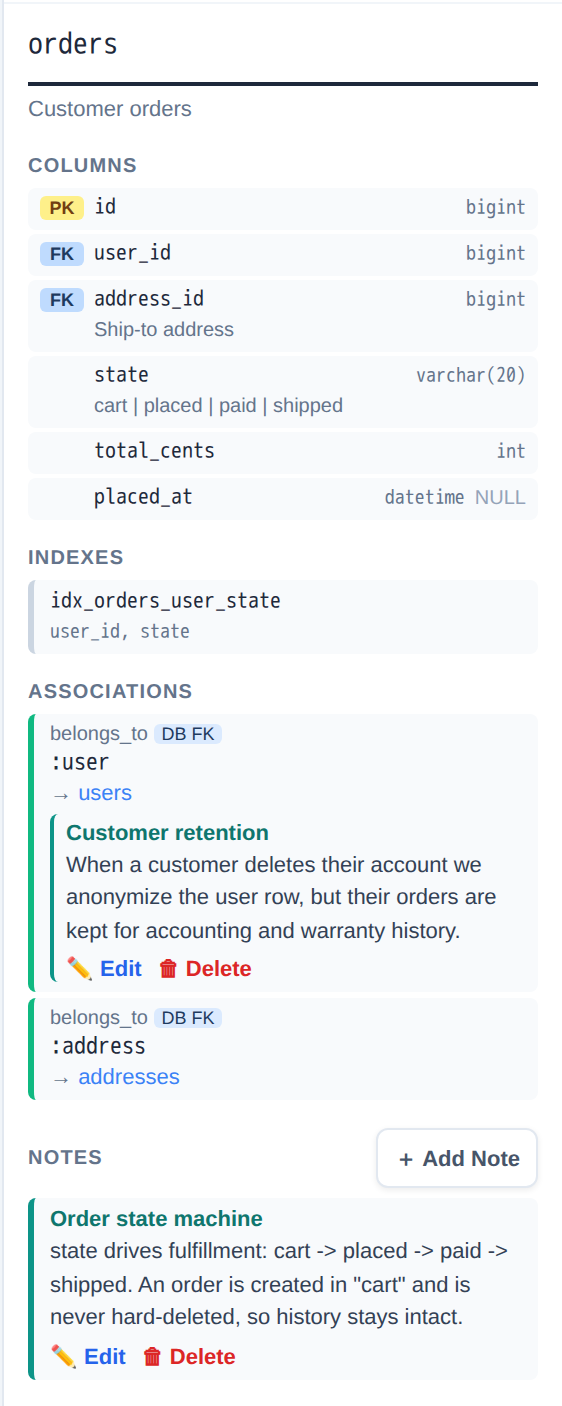
The orders detail panel from the live demo — a relation note (Customer retention) sits directly under its association, and a table note (Order state machine) gets its own Notes section.
A table or relation note only ever shows up where its target is actually visible: if a table is
unchecked or banned (🚫) from the current view, its detail panel simply isn't open, so its notes
don't appear anywhere either — nothing forces a hidden table's note into view. A global
note's legend entry is a separate, always-available block, unaffected by which tables are shown.
--excel workbook gains a
Notes sheet — see Excel workbook for what it contains.Groups: draw a frame around related tables #
Config groups: draws a rounded, titled frame around a set of related tables in the
diagram — a lightweight way to call out a domain ("Billing", "Orders") without touching the
schema. Like notes:, groups are a read-only sidecar: they never affect
columns, associations, merge precedence, or layout — the frame is simply drawn around wherever its
member tables already ended up.
groups:
  - id: billing
    title: Billing
    tables: [invoices, payments, coupons]
    color: "#0d9488"

  - id: catalog
    tables: [products, categories, product_categories]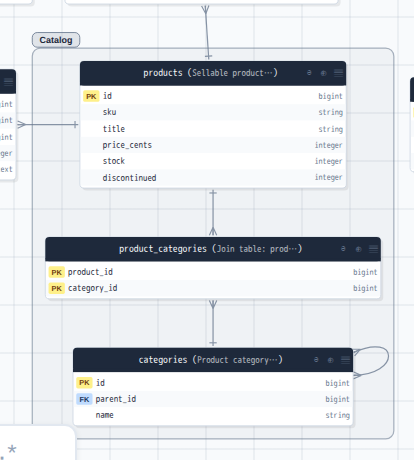
The catalog group above, as rendered in the live demo — a rounded frame and title chip drawn around the members. Drag the chip and the whole group moves together.
Every group needs a config-unique id and a non-empty tables list;
title (defaults to id when omitted) and color are optional.
color must be a hex string (#0d9488, #0d9, …) — anything else is
rejected when the config loads, the same first-line-of-defense spirit as notes:' http(s)-only
link URLs.
A table may belong to at most one group. Claiming the same table from two different
groups is a hard error naming both group ids and the table — never a silently-picked
winner. There's no support for overlapping or nested groups in this release.
Validation is two-pass, exactly like notes:/tables: above:
syntax is checked when the config loads (unknown keys, bad types, a malformed color). Every
member table's actual existence — and the no-overlap rule — is checked after every
source is merged, so a group may reference a table that tables: itself adds, and a group
naming something tables: removes is correctly a hard error, naming the group's
id.
In the viewer, a group's frame sits behind the diagram (nodes and edges are always drawn on top,
so it never gets in the way of clicking/dragging a table) and tracks its members live as they're
moved. Drag the group's title chip to move every member together in one motion. A "Groups" toolbar
toggle shows/hides every frame at once — it's hidden entirely when the config has no
groups:, so a plain schema's toolbar looks exactly as it did before this feature. Both
PNG and SVG exports include the visible frames.
--only/--exclude narrow a group's tables down to the tables that
survive filtering; a group left with zero surviving members is dropped from the output entirely,
same as a design note whose target didn't survive.
--excel workbook gains a
Groups sheet, and the overview sheet gains a Group column showing
each table's membership — see Excel workbook for details.CLI reference #
This table is verified against erd.py's argparse definitions — run
erdscope --help yourself any time to confirm it against the copy you're running.
erdscope [mysql://user@host/db | postgres://user@host/db | sqlite:///file.db | demo] [options]| Argument | Description |
|---|---|
mysql://…, postgres://…, or sqlite:///… | Positional. Database connection URL. postgres:// accepts an optional ?schema=name (default public); postgresql:// works too. sqlite:///path/to/app.db reads a local file via the built-in sqlite3 module (no server, nothing to install). MySQL/PostgreSQL/SQLite can also be assembled from engine/host/port/user/database in the config file (no password field there; for engine: sqlite, database is a file path and host/port/user don't apply — see Config file). |
demo | Positional. Generate from a bundled sample e-commerce database instead of a real one — builds a throwaway SQLite copy in a temp directory, runs the normal pipeline, and opens the result in a browser. Every other option in this table still applies. Config auto-discovery is force-disabled and an explicit --config is ignored with a warning, so the demo always looks the same regardless of the cwd. Default output is erd_demo.html (not erd.html), so it never clobbers a real run's output |
-o, --output OUTPUT | Output HTML file (default: erd.html) |
--no-html | Skip the HTML diagram entirely and write only the other requested outputs — useful in CI when the run exists to produce --emit-* files or an --excel workbook. At least one of --emit-json/--emit-config/--emit-digest/--emit-dbml/--emit-mermaid/--emit-plantuml/--excel is required, otherwise the run would produce nothing and exits with an error. Not combinable with -o/--output |
--models PATH | Merge association semantics parsed from application code: a Rails project (or app/models dir), a schema.prisma, a Django project, a SQLAlchemy models dir, a Laravel app/Models dir, or a Rails db/schema.rb file — source auto-detected. Repeatable to merge several frameworks; later ones win on ties. For an unambiguous, typed alternative see config sources: |
--adapter PATH | Load a Python plugin that registers a custom database adapter (DBAdapter) and/or framework overlay (FrameworkOverlay) — see Extending. Repeatable; also settable as config adapters |
--excel FILE.xlsx | Also write a table-definition workbook: an overview sheet plus one sheet per table |
--excel-template FILE.xlsx | Override the workbook's colors/fonts/borders from a template .xlsx — see Exports for the 5-cell contract. Has no effect (and prints a warning) without --excel |
--emit-json FILE.json | Also write a canonical JSON schema snapshot (with provenance and a content fingerprint) alongside the HTML — see Exports. Use - for stdout. The HTML is still generated unless --no-html is passed |
--emit-config FILE.yml|.yaml|.json | Also write the final schema as a config-authoring file, re-importable via --config — see Exports. Extension picks the format (- for stdout, always JSON). The HTML is still generated unless --no-html is passed |
--diff SNAPSHOT.json | Compare this run against a saved --emit-json snapshot instead of generating any output — see Exports. CLI-only (no config key). Not combinable with --emit-json/--emit-config/--emit-digest/--emit-dbml/--emit-mermaid/--emit-plantuml/--excel |
--diff-provenance | With --diff, also compare association provenance/sources (ignored by default) |
--diff-exit-zero | With --diff, exit 0 even when a difference is found |
--diff-format text|json | With --diff, render as human-readable text (default) or deterministic JSON |
--emit-digest FILE.md | Also write a token-efficient Markdown digest of the schema, with design notes, for LLMs/agents — see Exports. Use - for stdout. The HTML is still generated unless --no-html is passed |
--digest-verbose | With --emit-digest, also include nullable/default/sql_type per column (omitted by default) |
--emit-dbml FILE.dbml | Also write a minimal DBML export of the schema (tables/columns/indexes/single-column-FK relations/table comments) — see Exports. Use - for stdout. Does not include notes/groups/TableGroup (deferred). The HTML is still generated unless --no-html is passed |
--emit-mermaid FILE.mmd | Also write a Mermaid erDiagram export of the schema (tables/columns/PK-FK markers/relationships) — see Exports. Use - for stdout. Does not include notes/groups. The HTML is still generated unless --no-html is passed |
--emit-plantuml FILE.puml | Also write a PlantUML entity-relationship export of the schema (tables/columns/PK-FK markers/relationships) — see Exports. Use - for stdout. Does not include notes/groups. The HTML is still generated unless --no-html is passed |
--max-rows N | Max column rows shown per table before scrolling (default: 15) |
--only 'user*,post*' | Include only tables matching the glob pattern(s). Repeatable; comma-separated lists accepted |
--exclude '*_logs' | Exclude tables matching the glob pattern(s). Same syntax as --only |
--infer-fk | Guess relations from *_id column names when no real association/FK backs them. Off by default — see Troubleshooting |
--table-map 'Widget=crm_widgets' | Rails / Laravel only: override a model's table when static analysis can't determine it. Repeatable; comma-separated lists accepted — see Troubleshooting |
--config PATH | Load defaults from a config file. Auto-discovered as .erdscope.json/.yml/.yaml in the current directory if not given |
--no-config | Skip config auto-discovery even if .erdscope.* exists in the cwd |
--no-open | Skip automatically opening a browser after generating. Only relevant to demo (which opens one by default); accepted but has no effect on a normal run |
--version, -V | Print the version string and exit |
-h, --help | Print the full option help and exit |
Viewer guide #
Everything below describes the generated HTML file itself — the diagram you open in a browser, not the CLI that produced it. Try each control against the live demo as you read.
Panes #
The page is three panes: Tables (left) — the full table list with checkboxes and search — the diagram (center), and Details (right) — columns, indexes, and associations for whatever's selected.
- Resize — drag the thin divider between a side pane and the diagram (width is clamped between 140px and 560px).
- Collapse / expand — the ◀/▶ button in a pane's title bar collapses it; a small tab reappears on that edge to bring it back.
- Pane widths and collapsed state are remembered by your browser for next time you open this diagram.
Focus & exploration #
Double-click a table (in the list or on the canvas) to focus on it — the diagram narrows to that table and its related tables. Double-clicking the already-focused table, pressing Esc, or the ✕ Back to overview / Exit focus buttons all return to the full overview.
While focused, a bar across the top shows 🔍 Focused: <table> (depth <d>, <direction>).
Checkboxes in the left pane only affect the overview, not the focused view — a hint says so, and
Apply to checks checks exactly the tables the focus view is currently
showing into the overview, then exits focus.
Three controls shape what focus (and Auto-expand, below) pulls in:
| Control | Options | Effect |
|---|---|---|
| Depth | 1 / 2 / 3 / ∞ | How many relation hops out from the focused table to include |
| Direction | Both / Deps / Dependents | Deps follows what this table depends on (parents it references via FK); Dependents follows what depends on this table (children referencing it). This also governs each table's ⊕ button, regardless of Auto-expand. |
| Auto-expand | toolbar checkbox | When on, every checked table in the overview acts as a traversal root, pulling in its neighbors up to the current depth/direction. Focus mode always expands from the focused table regardless of this setting. |
Turning Auto-expand off stops it from expanding any further — it does not
retract what it had already pulled in. Those tables stay on screen with a finer dashed
KEPT border (distinct from the regular dashed AUTO border a live
auto-expanded table gets) until you check one (its +
button, or its now-unlocked list checkbox) or remove it (the node's ⊖ button). The
table list also tags a live AUTO or kept KEPT row in words (not just the
sole blue dot every auto-shown row gets). While Auto-expand is on, a checked table that's
currently a live traversal root shows a small green ◎ symbol in the list instead of a
word — an ordinary checked table gets no marker at all, since a ticked checkbox is unambiguous on
its own. The diagram itself still marks the same tables with a ✓ badge on the node.
Checking a KEPT table simply loses its tag rather than gaining a new one; the
checkbox itself, a confirmation toast, and a brief flash on the node are what confirm it went
through.
Turning Auto-expand back on clears any kept tables and recomputes the expansion from scratch, so
repeatedly toggling it on and off can't gradually creep the display outward.
Each node also has a ⊕ button that pulls in just that table's direct neighbors
(respecting the current direction) as a one-off — it doesn't itself become a new expansion root, so
one click can't cascade the whole schema in.
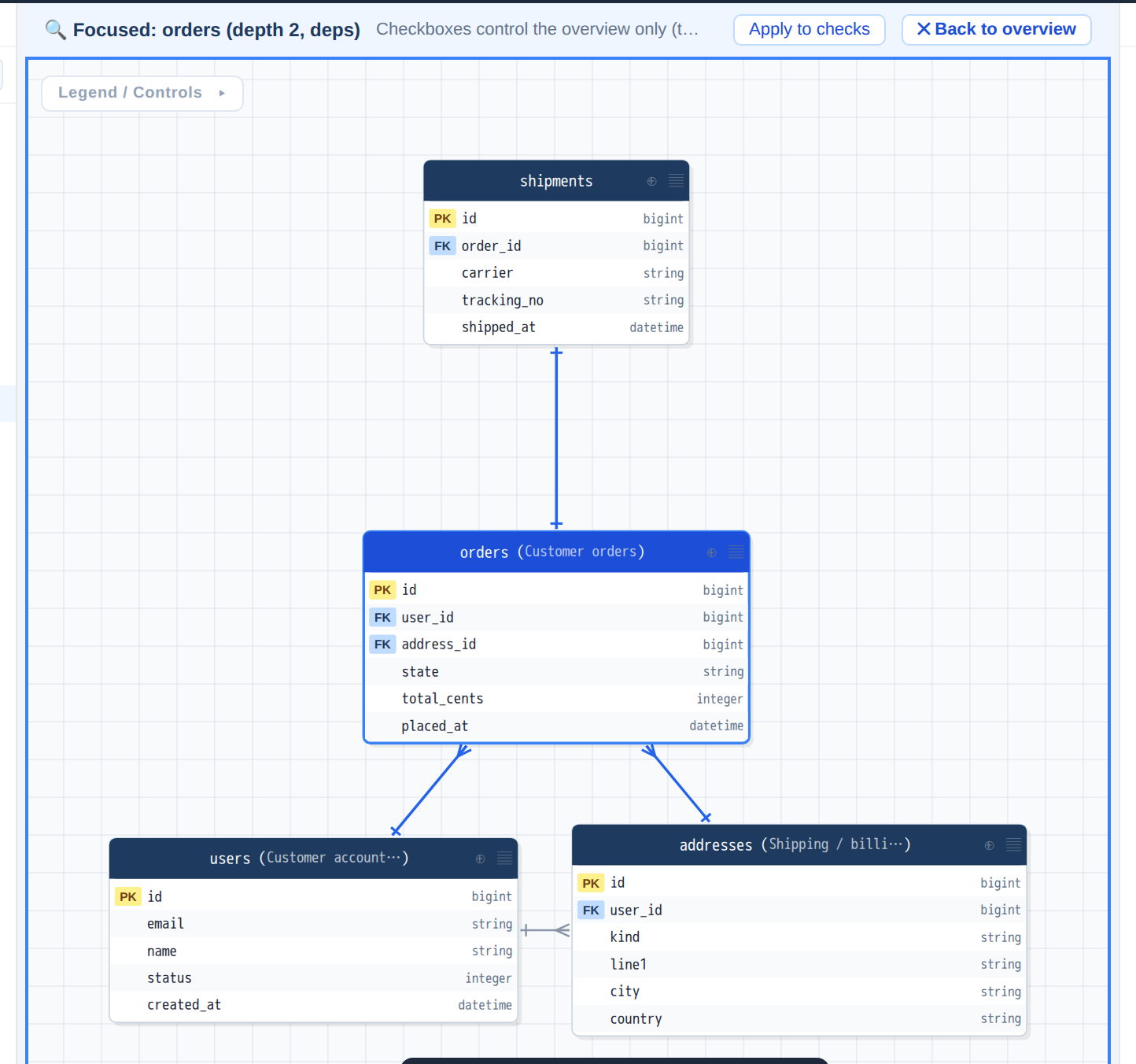
Focused on orders — depth 2, Deps direction. The focus bar shows both settings; the toolbar's depth/direction controls only appear while focused or Auto-expand is on.
Hiding tables — two levels #
erdscope has two independent ways to remove a table from view, with different strength:
| Exclude | Ban (hide) | |
|---|---|---|
| Trigger | Uncheck its box in the list, or the node's ⊖ button | The list row's 🚫 button only |
| Strength | Light — can come back via Auto-expand as someone else's neighbor, or by re-checking the box / another table's ⊕ | Hard — never shown again, even by Auto-expand, until unbanned |
| Undo | Re-check the box | 🚫 again on that row, or Unban all in the red banner that appears while anything is banned |
A KEPT table's checkbox is already unchecked (it was never a checked table to begin
with), so checking it checks it (its KEPT tag disappears, since an ordinary
checked table gets no tag) rather than excluding it — use the node's ⊖ button to
actually remove a kept table from view.
Banning the currently-focused table exits focus. Both excluded and banned sets are remembered by your browser and are captured in named views and share links.
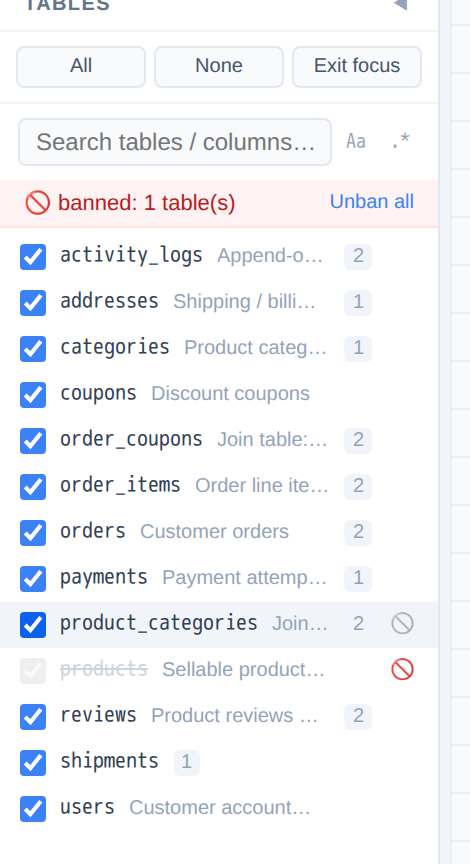
products banned via the list's 🚫 button — struck through, checkbox locked, and counted in the red banner above.
Search & highlight #
There are two different search boxes, and they do different things:
Filter (left pane, "Search tables / columns…")
Matches table name, column name, column comment, table comment, and any note attached to a table, its relations, or the whole diagram. Live-filters the table list as you type. Enter jumps to the best match in the diagram (pulling it back into view if needed) and highlights the matched column.
Highlight (toolbar, "Highlight…")
Mostly the same match fields, but never removes anything from view — it marks matching tables/columns and dims the rest, purely as an overlay. It also matches table/relation notes, but — since it can only mark diagram nodes — not a global note, which has no table of its own; use the filter box for that. Enter/Shift+Enter step to the next/previous match. Unlike selection, a Highlight query is preserved into PNG/SVG exports.
Each box has its own, independent Aa (match case) and .* (regular
expression) toggle — turning on regex mode in the filter box doesn't affect the Highlight box.
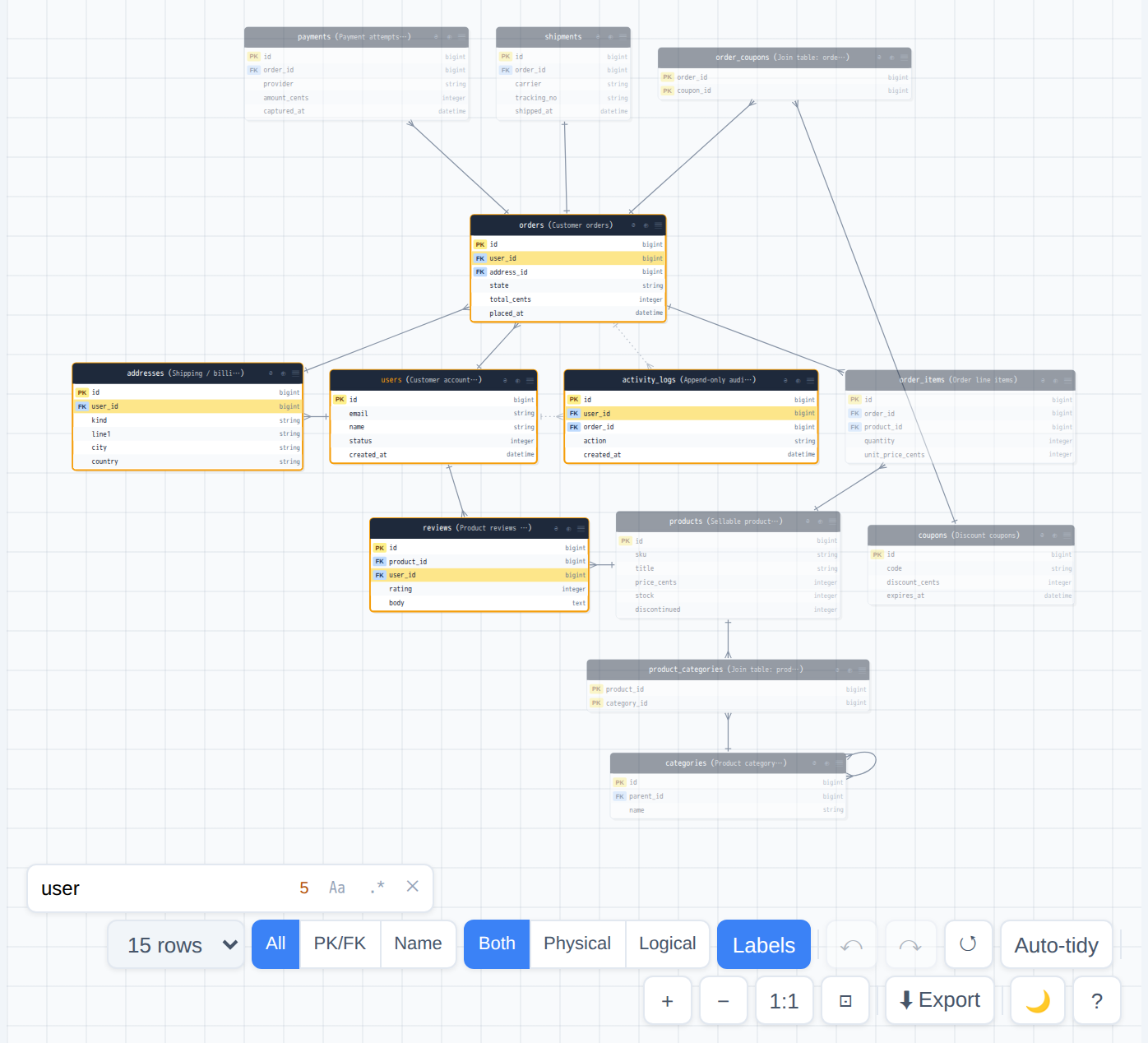
Highlighting user — matching tables/columns get an amber outline, everything else dims, but nothing is removed from the diagram.
Layout & selection #
- Pan — drag empty canvas, or two-finger scroll.
- Zoom — pinch / Ctrl+scroll, or the toolbar
+/−/1:1/⊡ Fitbuttons. - Multi-select — click selects one table; Shift-click or Ctrl/Cmd-click adds/removes it from the selection; Shift-drag from empty canvas draws a rubber-band. Clicking empty canvas deselects everything.
- Drag to move — dragging a selected table moves the whole selection together. Dragged edges snap to nearby tables' edges/centers within a few pixels, drawn as red guide lines (Figma-style) — hold Alt to disable snapping for a drag.
- Group drag — dragging a group's title chip moves every member of that group together (no snapping); the group's frame tracks along, live.
- Align / distribute — with 2+ tables selected, the right pane offers ⇤ Left / ⇡ Top / ↔ Center / ↕ Middle; with 3+ selected, ⇔ Horiz. / ⇕ Vert. distribute becomes available too (it keeps the two outermost tables fixed and equalizes the gaps between the rest). If the selected tables are together wider than the span they occupy, there's no such arrangement without overlap, so distribute does nothing rather than shove the far end outward — spread the selection out first. Aligning is never refused for overlapping (left-aligning a row stacks it, exactly as in a drawing tool), but when an align or distribute puts tables on top of each other that weren't before, the toast says how many and the affected tables flash — undo reverts it.
- Layout orientation — a toolbar control next to
↺/ Auto-tidy that chooses how overview auto-layout packs the graph. It is not the same as top-bar Direction (Both / Deps / Dependents), which only controls relation traversal for Auto-expand and focus depth.- Vertical (default) — the classic top/bottom BFS depth-row packing. Missing, old, or invalid saved values fall back here.
- Horizontal — hub near the center of each connected component; whole depth-1 branches go left or right by subtree load (dependencies prefer left, dependents prefer right as a weak tie-break), with deeper tables progressing outward on that side.
- Auto — on each overview full layout (Layout change,
↺, or Auto-tidy full re-pack), scores a small fixed set of Vertical and Horizontal candidates against the current viewport and picks deterministically. Ranking: no overlap / no group-frame intrusion first, then materially better fit scale, then shorter total edge length. Near-ties prefer Vertical (documented relative tolerances). Does not re-evaluate on window resize alone.
↺honor it. Focus mode always uses the Vertical hub-spoke layout and disables the Layout control while focused. Changing Layout (or pressing overview↺) replaces manual coordinates, runs one full re-layout, renders once, and re-fits the viewport — even when Auto-tidy is off. Undo restores prior positions but does not change the selected Layout policy. Named views and share links store the policy under a short key and restore saved positions without re-packing until the next explicit layout action. - Auto-tidy — a toolbar toggle that rearranges the overview and replaces manual positions automatically whenever the displayed tables or their sizes change (default off, so manual placement is never touched unless you turn it on). The
↺button re-lays-out immediately on demand and always re-fits the viewport, regardless of Auto-tidy. Both use the current Layout orientation in the overview. - Undo/redo — toolbar
↶/↷buttons or Ctrl/Cmd+Z / Ctrl/Cmd+Shift+Z (or Ctrl/Cmd+Y). Covers table position changes only (not the Layout orientation choice); the history clears whenever you enter/exit focus or load a saved view, since those replace the whole layout.
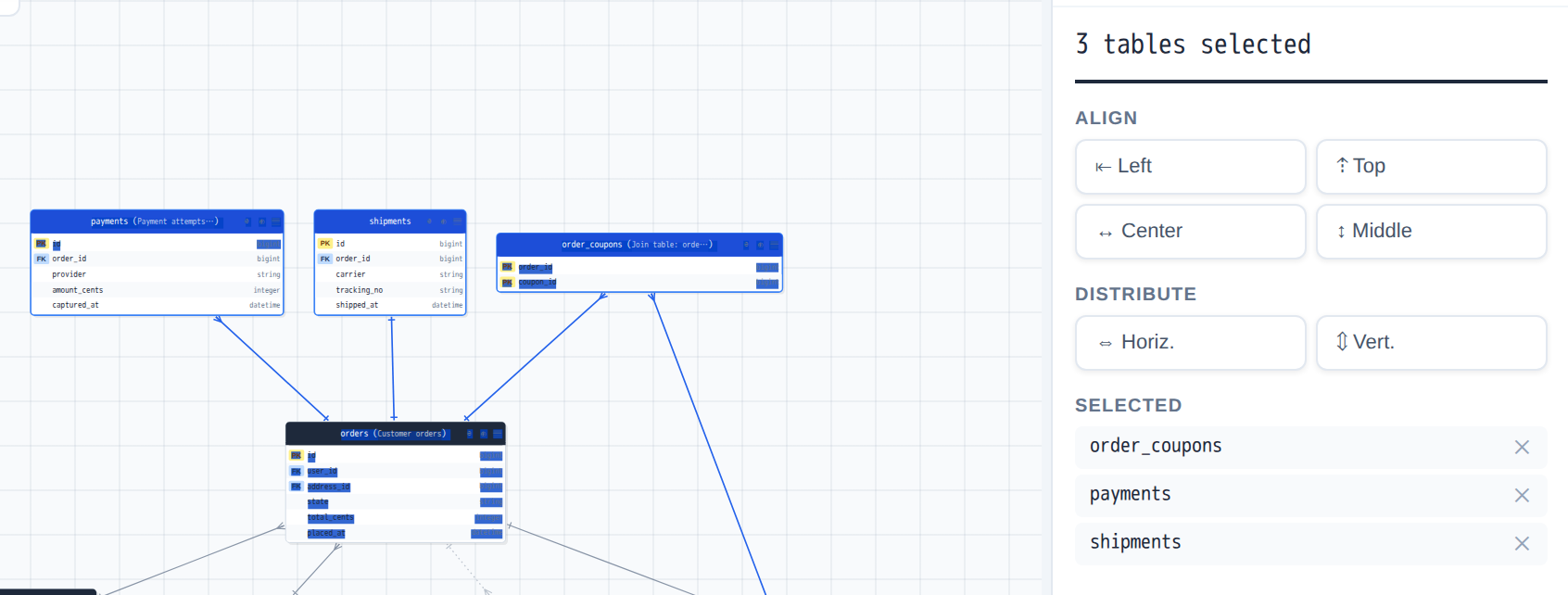
Three tables selected — with 3+, both Align and Distribute are available (2 selected enables Align only).
Column display modes #
A toolbar control switches every table between All columns, PK/FK only,
and Name only (table names, no columns). Each node also has its own ▤
button that cycles that one table's mode independently — handy for zooming in on one big
table while keeping the rest compact. A global mode change resets any per-table overrides.
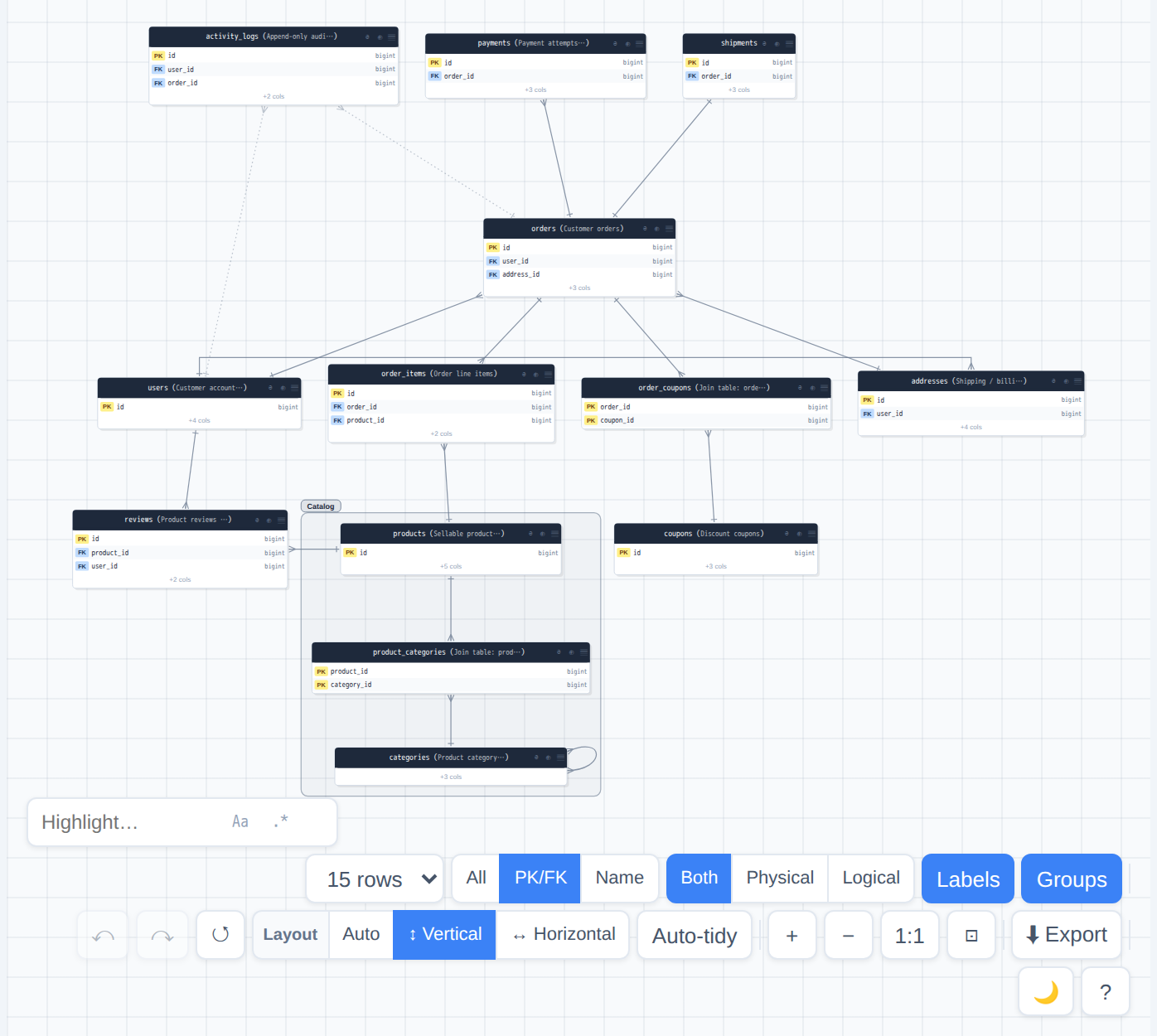
Everything in PK/FK mode (selected in the toolbar), with categories individually overridden to Name via its ▤ button. Each node's “+N cols” counts its collapsed columns.
Logical names #
A table's DB comment doubles as a searchable "logical name" — e.g. users(Customer accounts).
A toolbar toggle picks Both / Physical / Logical for the live
view. Exports have their own, independent Both/Phys./Log. choice inside the export panel
(see Exports) — changing what you're looking at doesn't change what gets
exported, and vice versa.
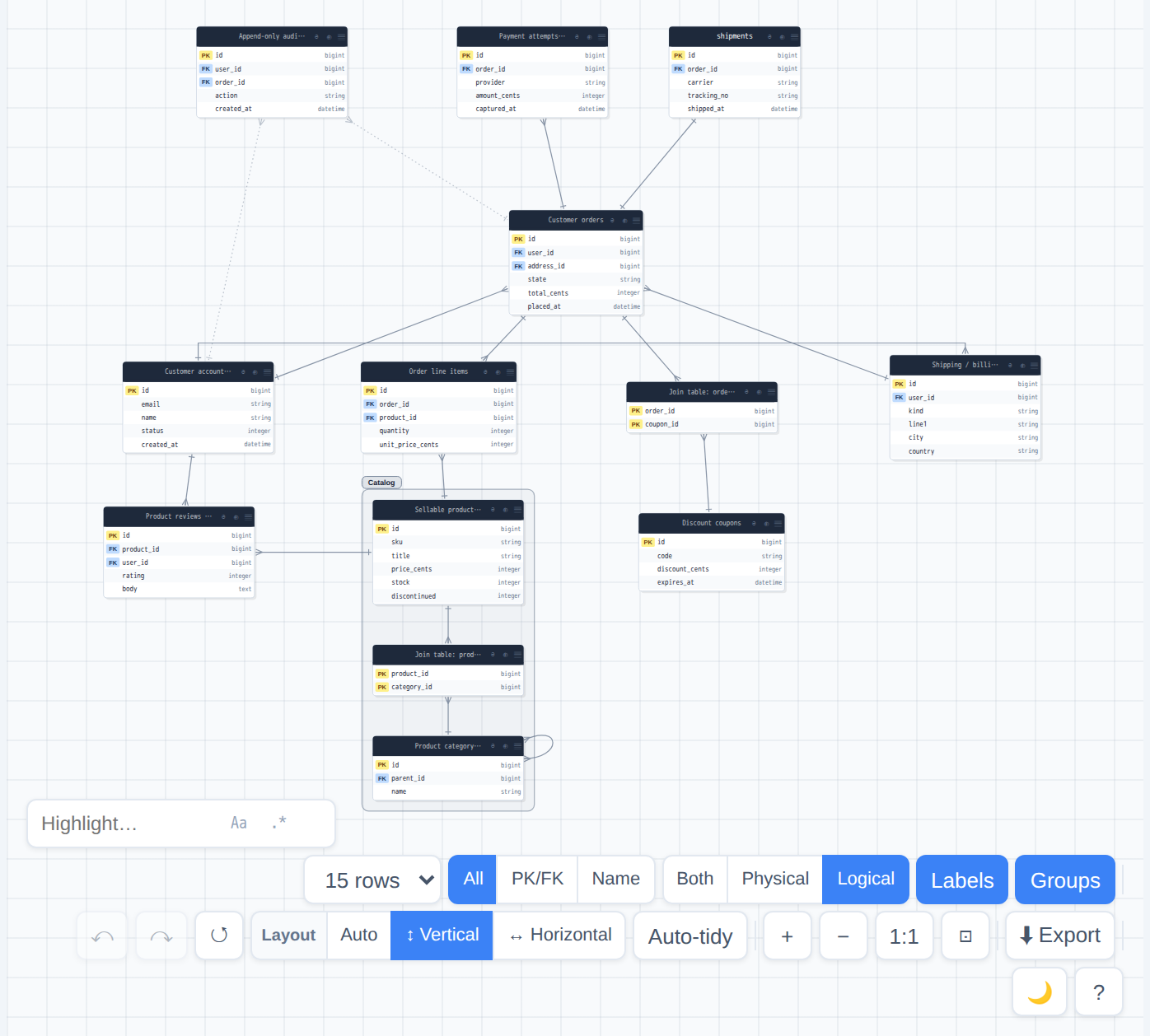
Logical mode — every table shows its logical name (DB comment). shipments has no comment, so it naturally falls back to its physical name.
Named views & share links #
💾 Save prompts for a name and stores the current view under it (an existing name overwrites). A saved view captures: excluded tables, banned tables, any tables kept on screen after Auto-expand was turned off, Auto-expand, depth, direction, column mode, and every currently-displayed table's position.
Load a saved view from the Views… dropdown, or delete it with
🗑. 🔗 copies a share link — the current
view, JSON-encoded, appended to the page's own URL. Opening that link reproduces the view
automatically, so you can paste it straight into a PR description or chat.

The top bar right after saving “Order fulfillment” — the selector shows the applied view, next to 💾 Save, 🗑 (delete), and 🔗 (share link).
Edge types #
Routing: relation lines prefer a straight segment between table borders whenever the path is clear — including nearby tables, diagonals, and pairs that consolidate several associations. When another displayed table blocks the direct line, the viewer uses a one- or two-bend orthogonal (right-angle) detour that stays outside a small clearance around non-endpoint tables. Self-relations keep a compact loop. Association count is never encoded by curvature; group frames are visual containers, not routing obstacles.
Three kinds of relation feed the diagram, but they render as two distinct line styles on the canvas, plus badges in the Details pane:
- Solid line — the default: a declared association (from
--models), a real DB FK constraint, or a foreign key statically parsed from a Railsdb/schema.rb(sources[].type: rails.schema). On the canvas these all look the same; the Details pane's association list distinguishes them with a DB FK badge for constraint-backed edges, a schema FK badge for aschema.rb-derived edge, or no badge for a plain declared association. - Dashed line — a many-to-many relation (only reachable via a join table /
has_and_belongs_to_many/through, no directbelongs_to/has_one). - Faint dotted line — a name-based guess from
--infer-fk, shown only when every association backing that edge is inferred. Marked with a inferred badge in the Details pane. The column-list "FK" badge is never granted by inference alone — only a real association earns it.
A manual badge marks an association that came from the
config file's relations list. A dashed node border (as opposed to a dashed
edge) means that table was pulled in by Auto-expand rather than checked directly — a regular dash
(AUTO) if Auto-expand is currently live, or a finer dash (KEPT) if
Auto-expand pulled it in and was since turned off (see Focus &
exploration).
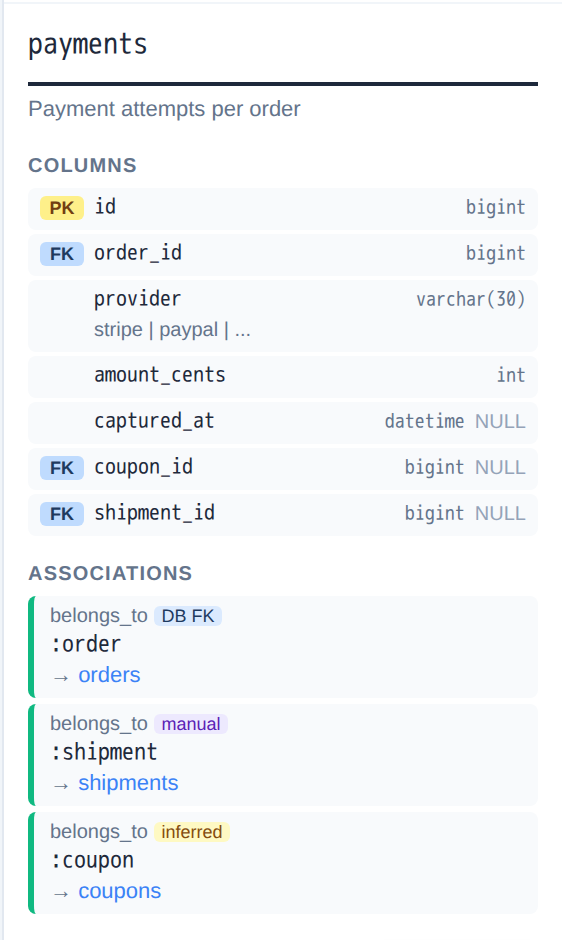
payments' Associations — a real FK constraint (DB FK), a config-file relation (manual), and a name-based guess (inferred) side by side in one list.
Data Dictionary (Schema Grid) #
The diagram is the right view for tracing relationships, but a plain, scrollable table is often faster for auditing every column at once or handing a schema to someone who would rather read a spreadsheet. The left pane's 📋 Grid button opens exactly that: a full-screen Data Dictionary modal covering the whole schema, independent of whatever the diagram behind it currently has focused, hidden, or excluded.
Two tabs switch what one row represents, each with a live count: Tables (n) and
Columns (n). A separate toggle controls how much of each row is shown:
Compact packs keys and notes into small badges; Detailed (the
default) expands them into full text — primary/foreign key targets, index definitions, and note
bodies inline.
A scope selector narrows the filter box to All Fields, Table Name,
or Column Name, plus an Exact match toggle. Table
Name is the default scope — changed from All Fields in 0.12.1,
because All Fields also searches every table's foreign-key detail strings (e.g.
user_id -> users.id). That meant typing a hub table's name, like
users, matched that table and every table with a foreign key into it — on
a small schema, easily "every table," which reads exactly like no filter had been applied at
all. All Fields is still one click away in the scope selector, and it is the right
choice when you deliberately want everything related to a name, not just the table or column
itself.
Every export button below the controls acts on the active view — whichever tab and filter are currently showing: 📋 TSV / ⬇ TSV and 📋 CSV / ⬇ CSV copy or download it, TSV being the one that pastes cleanly into Excel. Open read-only view ↗ opens the same Data Dictionary — a snapshot of the schema as it stands right now, including anything you have added below — as a standalone, read-only page in a new tab; hand that to someone you don't want editing the schema.
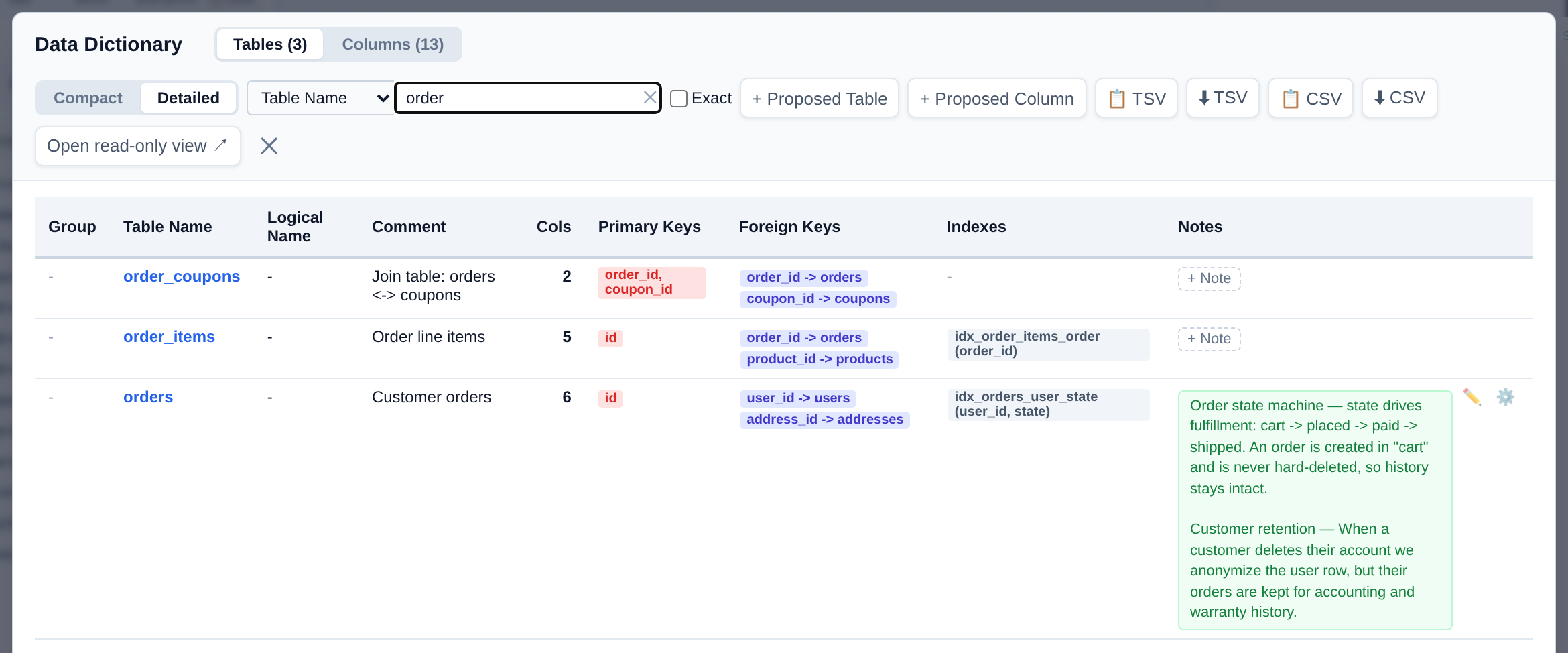
The Data Dictionary's Tables tab, Detailed mode, filtered to order by
Table Name — the default scope as of 0.12.1.
Editing notes in the browser #
Notes above describes authoring notes in the config file. You don't have
to round-trip through a file for a quick one: notes are editable directly in the running
viewer, from three places — the right pane's + Add Note
button under a table's Notes section, the Data Dictionary grid's + Note button on
any table or column row that doesn't have one yet, and, on an existing note wherever it renders
(right pane, the Associations list, the legend for a global note, or the grid), a
✏️ Edit / 🗑 Delete pair right next to it.
The grid offers two editing depths for the same note. The pencil (✏️) opens a
small inline textarea right in the cell — Save / Cancel, plus a Modal... escape
hatch — good for a quick wording fix; saving with the text emptied deletes the note. The gear
(⚙️) opens the same full note editor the right pane's + Add Note
button uses: a Scope dropdown (Table / Relation /
Global) that swaps in the matching target fields, plus Title and
Note Content. Switching Scope to Global is currently the only way to
create a diagram-wide note from the browser — there is no dedicated "add global note"
button.
links: config-authored links on
a note you edit here are left untouched, but you cannot add or change one without editing the
config file directly and re-running erdscope.Proposed schema (ToBe) #
Everything else in the viewer describes what's actually there — the diagram, the grid, and notes are all read from the merged AsIs schema. The Data Dictionary's + Proposed Table and + Proposed Column buttons are the one place you can sketch what isn't there yet — a ToBe change, drafted straight in the browser, before anyone touches a migration or the config file.
+ Proposed Table asks for a physical name (required), and
optionally a logical name, comment, and group; it is added with a single proposed
id primary-key column so it renders like any other table. + Proposed Column asks for a target table and column name
(required), and optionally a logical name, data type (defaults to varchar(255)),
nullability, and comment. Both take effect immediately: the new table or column shows up in the
diagram, the table list, and the grid right away — the diagram canvas itself draws a proposed
table exactly like any other, since it is now simply another entry in the live schema you're
looking at. Only the grid marks it as not-yet-real, with a PROPOSED badge next to
its name.

A proposed column, added via + Proposed Column —
the PROPOSED badge in the grid is the only place this schema marks it as
not-yet-real.
varchar(255) — so a later real-schema change to those columns
is masked the same way until the config is pruned. See Config
JSON & Updated HTML below for what gets exported and why.Keyboard shortcuts #
This is the complete list — there's no shortcut for zoom, save, or export. The toolbar's ? button shows a condensed version of it right inside the viewer, along with the mouse gestures and a link back to this manual.
| Key | Action |
|---|---|
| Esc | Context-dependent, in order: close an open toolbar menu (Export or ? help) → clear the filter box if it's focused and non-empty → clear the Highlight box the same way → exit focus mode → otherwise, deselect everything |
| Ctrl/Cmd+Z | Undo the last layout change |
| Ctrl/Cmd+Shift+Z or Ctrl/Cmd+Y | Redo |
| Enter (in the filter box) | Jump to the best matching table/column |
| Enter / Shift+Enter (in the Highlight box) | Next / previous match |
Dark mode #
The 🌙 toolbar button toggles dark mode for the diagram. It's a manual toggle only —
the viewer does not follow your OS/browser color scheme automatically — and your choice is
remembered by your browser for next time. Exports (PNG/SVG) always render with the light palette,
regardless of which mode you're currently viewing in.
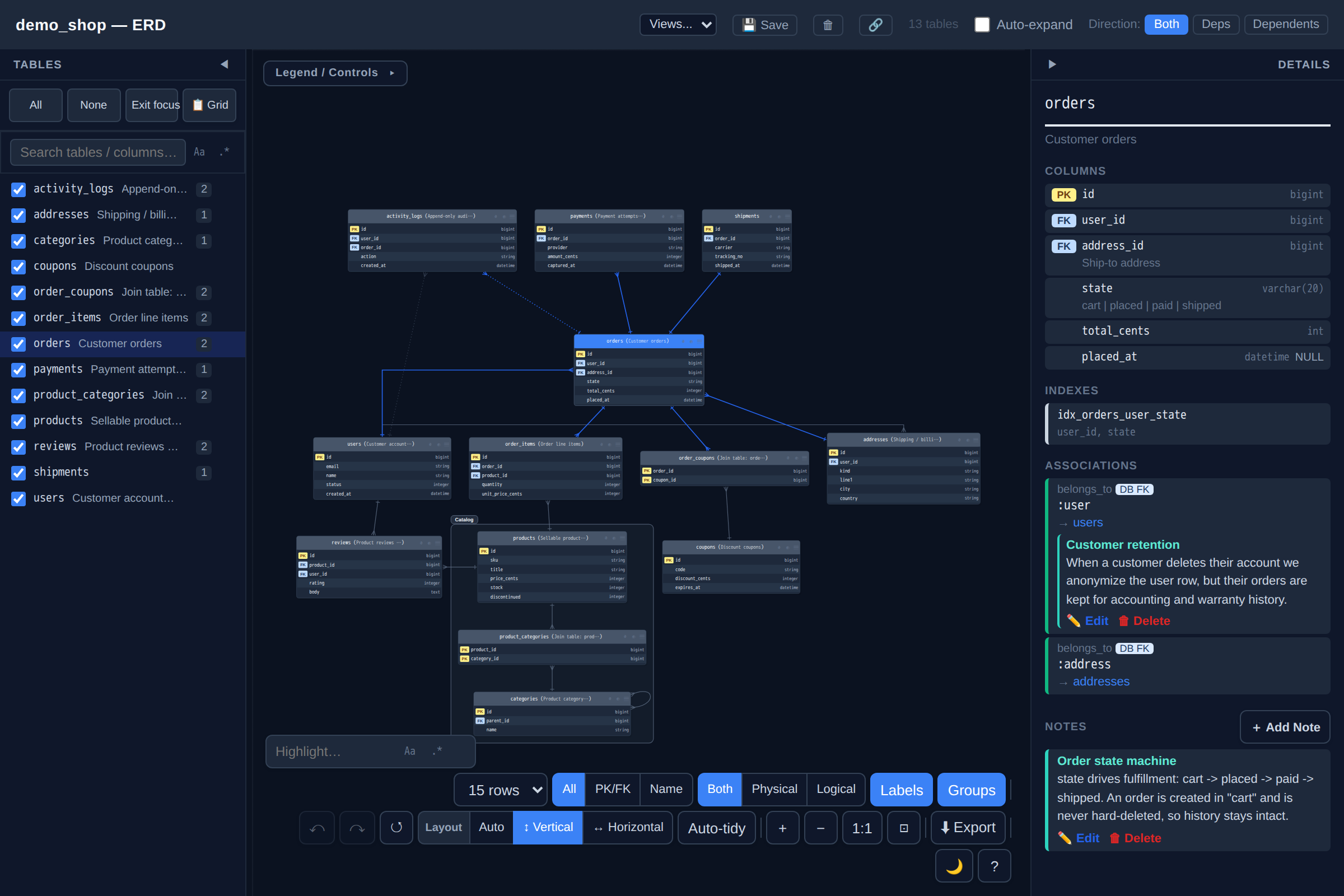
Dark mode via the 🌙 toggle — the diagram, both panes, badges, and notes all switch palette (independent of this manual's own theme).
Print #
There's no dedicated print button — use your browser's own print command (Ctrl/Cmd+P). A print stylesheet hides all the chrome (panes, toolbar, legend, focus bar) automatically, leaving just the diagram on a plain white background.
Exports #
The toolbar's ⬇ Export button opens a panel with image options at the top and one row per format below, each with separate Copy and Download buttons — copying and downloading were deliberately split into distinct actions so a browser that can write images to the clipboard doesn't stand between you and just saving a file.
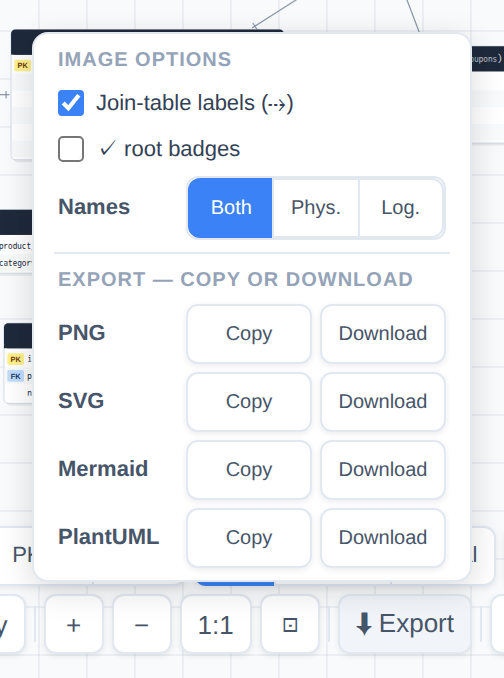
The export panel: image options at the top, one Copy/Download row per format below.
Image options PNG / SVG only
These two checkboxes and one toggle apply only to the PNG and SVG exports — Mermaid, PlantUML, DBML, and the Excel workbook are unaffected by them:
- Join-table labels (⇢) — on by default; turn off to exclude the small "via join table" edge labels from the exported image.
- ✓ root badges — off by default; turn on to exclude the checkmark badges that mark Auto-expand roots from the exported image.
- Names: Both / Phys. / Log. — independent of the live view's own name-mode toggle (Viewer guide); lets you export logical-only names for a stakeholder deck while still viewing physical names yourself.
A live Highlight search is preserved into both PNG and SVG exports (unlike table/edge selection, which is always stripped) — the point is being able to paste a highlighted diagram straight into a doc.
PNG
Rendered by drawing the diagram as SVG, loading it into an offscreen <canvas>,
and rasterizing at up to 2× scale — clamped down (never up) if that would exceed an
~8000px canvas dimension, since browsers cap canvas size well below that and silently fail beyond
it. Copy writes directly to the clipboard, falling back to a file download
automatically if the browser can't write images to the clipboard. Download always
saves a file.
SVG
Copy copies the raw SVG markup as text (falling back to download on failure);
Download saves an .svg file. The exported SVG always uses the light
color palette, independent of the live view's current dark/light mode.
Mermaid
Generates an erDiagram block covering whatever's currently displayed —
focus, hidden, and excluded state all apply, so this isn't necessarily the whole schema. Each table
becomes an entity block listing column name, type, and a PK/FK marker; each edge becomes a
relationship line using Mermaid's crow's-foot notation, labeled with the first association's name.
Column comments, nullability, defaults, and logical names are not included in Mermaid output — only
name, type, and key marker.
PlantUML
Same scope and limitations as Mermaid (currently-displayed tables, no column comments), but with
entity markup: primary-key columns are listed first above a divider, non-nullable columns are
marked *, foreign-key columns are marked <<FK>>, and a
table's logical name (if it has one) appears alongside the physical name in full-width parentheses.
DBML
Same scope as Mermaid and PlantUML (whatever's currently displayed), emitted as
DBML ready to paste into
dbdiagram.io. Each table becomes a
Table block with one line per column (type, plus pk / increment /
not null / default settings where they apply), an indexes block
when the table has indexes or a composite primary key, and a Note carrying the table
comment (falling back to its logical name). Single-column, non-polymorphic belongs_to
associations whose target is also displayed become Ref: lines. This mirrors the CLI's
--emit-dbml, which covers the whole schema instead of just the
displayed subset.
Excel workbook
--excel FILE.xlsx writes a workbook with no external spreadsheet library involved:
- Overview sheet — one row per table:
#,Table(hyperlinked to that table's own sheet),Comment,Columns(count),Indexes(count),Missing schema, plus a trailing Group column (the table's group title, or blank) when any groups are configured. - One sheet per table — table name and comment, then a column table (
#,Column,Type,Nullable,Default,Key—PK/FK/blank,Extra,Comment), an Indexes section if the table has any (name, columns, unique), and an Associations section if it has any (type, name, target, and how it was sourced:DB FK/inferred/manual/code). - Notes sheet — present only when any notes are configured: one row per note (
#,ID,Scope,Target,Title,Text,Links), sorted by note id. Arelationnote's Target showssource_table → target_table; atablenote shows the table name; aglobalnote leaves Target blank. - Groups sheet — present only when any groups are configured: one row per group (
#,Groupid,Title,Color,Tables— a comma-separated, alphabetized member list), sorted by group id.
Both new sheets — and the overview's Group column — are omitted entirely (not left present-but-empty) when there are no notes/groups, so a run with neither produces the exact same workbook bytes as before this feature existed.
--excel-template FILE.xlsx lets you restyle the workbook — colors, fonts, borders —
without touching erdscope's code, via a 5-cell contract: on the template's first
worksheet, column A, rows 1 through 5 must be styled as Title / Header / Data / Data (alternate row)
/ Section respectively. Only each cell's style (font, fill, border) is read — the cell's
text content doesn't matter. A missing contract cell falls back to erdscope's built-in style for
just that one role, with a warning on stderr; only a file that can't be opened as a
.xlsx at all is a hard error.
The repo ships
excel-template.xlsx
(regenerated by gen_excel_template.py) as a ready-to-edit starting point — its
Styles sheet has the five contract cells pre-styled with erdscope's own default
look and a plain-language description of each role in column B.
--excel-template has no effect without --excel — erdscope prints a
warning to stderr and otherwise ignores it if you pass a template with no --excel
target to style.JSON snapshot
--emit-json FILE.json (use - for stdout) writes a canonical,
machine-readable projection of the final schema alongside the HTML — the HTML is still
generated either way. The document is
{"format": 1, "fingerprint": "sha256:…", "schema": {"tables": {…}, "notes"?: […], "groups"?: […]}}:
every table is reduced to comment (omitted when empty), columns,
indexes, and associations — no internal or plugin-only keys — with
columns and indexes deterministically ordered/sorted, and each association's provenance
normalized to one of five values (declared, manual,
db_fk, schema_fk, inferred) plus, where known, the set
of layers that contributed it. (Only associations carry provenance — a table, column, or
index records no "which input won it" marker; the provenance-aware IR is association-limited.)
A non-polymorphic association whose target didn't survive
--only/--exclude is pruned rather than left dangling; a polymorphic
belongs_to has no single target table, so it is always kept (its
target is a symbolic, tableless name). The
fingerprint is a sha256 content hash of the schema, stable across
table/notes/groups/sources reordering — identical input always produces byte-identical
output, so it's safe to diff two snapshots or gate CI on the fingerprint changing. The shape
and fingerprint are the stable format 1 contract, versioned by the top-level
format field — a breaking change to the projection bumps it (to format
2, …) rather than silently altering what existing consumers parse.
Config export
--emit-config FILE writes the final schema as a config-authoring file — one
that can be fed straight back in via --config — alongside the HTML, which is
still generated either way. The extension picks the format: .yml/.yaml
for YAML (PyYAML must be installed — this is a hard error, not a silent fallback to JSON),
.json for JSON, or - for stdout, which is always JSON since there's no
extension to read. The document is a normal tables:/notes:/
groups: config (Config file), so it re-imports with no
special handling.
Reimporting this file reaches what the project calls level1: materially
the same schema — same tables, columns, types/nullability/defaults, primary-key column
sets, indexes as (columns, unique) sets, associations as (type, target, foreign_key,
through, polymorphic) tuples, comments, notes, and groups — not a byte-identical round trip.
Provenance, the per-layer sources set, and config-only operations
(drop/*_mode) don't survive one pass through the merged schema, so a
reimported association always shows as manual. A composite primary key is
re-derived from which columns are individually flagged primary, not read back from the
schema's own primary_key field — a database-sourced composite key only records
its first column there, so reading it directly would silently truncate the key on reimport.
A handful of config rules are relaxed specifically to make this round trip possible: an index
no longer needs a name to be added (only a drop still needs one to identify its
target); a relation note's narrowing fields distinguish an explicit null (must be
absent on the match) from an omitted key (matches anything); a polymorphic association's
target isn't required to name a real table, and a note about one survives --only/
--exclude filtering as long as its source table does; and a Rails-only table (no
database backing) isn't required to have a real column behind its foreign key. YAML output is
deterministic — sorted keys, literal block style for multi-line note text — and quotes any
plain value that YAML's own type rules would otherwise misread as a boolean, octal, or other
number on the next load (e.g. a comment that's literally the string no), so a
string always comes back as the same string. One thing level1 can't preserve either way: an
empty-string column default (DEFAULT '') and no default at all look identical to
every provider on read, so neither survives the round trip — the same limit --diff
cannot detect.
Save proposed changes from the viewer: Config JSON & Updated HTML
Everything from Editing notes in the browser and Proposed schema (ToBe) is auto-saved to your browser's LocalStorage as
you go, and restored the next time you open this same generated HTML file — but LocalStorage
never leaves your browser. To turn those edits into a file you can commit, attach, or feed back
into the CLI, use the toolbar's ⬇ Export menu's Save
proposed changes section, or the status indicator that sits next to the Export button
at all times: ✓ Changes exported (green) when nothing is pending, or ⚠️
Unexported changes (amber) as soon as you edit a note or add a proposed table/column.
Clicking that indicator, in either state, opens a small modal with four actions: ⬇ Download Config JSON, 📄 Download
Updated HTML, 📋 Copy Config JSON, and Discard & Reset Changes (reloads the page and wipes both the
pending edit and anything already persisted). The same two formats, as Copy/Download pairs,
are also reachable directly from the Export menu without going through that modal. Once you
export, the indicator switches back to ✓ Changes exported.
Why two formats: Config JSON is a normal config
file — the notes, groups, and any proposed tables/columns you've added — meant to feed back
into the CLI with --config (to re-apply your edits on the next run) or
--diff (to gate CI on them). It's the same shape --emit-config produces, scoped to just the tables you
touched in the browser rather than the whole schema. Updated HTML is the opposite: a new,
self-contained copy of this same viewer with every edit already embedded, for handing to
someone who just wants to open a file and look — no CLI, no config, nothing to re-run.
varchar(255) — so a later real-schema change to
those columns is masked the same way until the config is pruned. See Proposed schema (ToBe) above.Schema diff / drift gate
--diff SNAPSHOT.json compares this run against a previously-saved
--emit-json snapshot and reports the difference instead of generating any
output — no HTML, Excel, JSON snapshot, config file, digest, DBML, Mermaid, or PlantUML is written for a
--diff run, and it can't be combined with --emit-json/
--emit-config/--emit-digest/--emit-dbml/--emit-mermaid/
--emit-plantuml/--excel (a usage error,
exit 2). It compares at level1 — the
same "materially the same schema" notion Config export defines —
not byte-for-byte: added means present in this run only, removed
means present in the snapshot only, at every level (tables, then within each common
table its columns/indexes/associations, plus notes and groups). Indexes are matched by
(columns, unique), so a bare rename is invisible; associations are matched by
(type, target, name, foreign_key, through, polymorphic) with provenance/sources
excluded unless --diff-provenance is passed, so a retargeted foreign key (or a
provenance-only change under that flag) shows as one relation removed and its replacement
added, not a single "changed" entry.
Exit code is the gate signal: 0 when the two are level1-identical,
1 when they differ (pass --diff-exit-zero to report the
difference without failing a CI step), 2 on a usage error or an
unreadable/invalid snapshot (missing file, malformed JSON, or a document that isn't a real
--emit-json snapshot — e.g. an --emit-config file, which has no
top-level format/schema). When the snapshot's own
fingerprint matches this run's, the two are trivially identical and the full
comparison is skipped. --diff-format text (default) prints a summary count plus
+added/-removed/~changed lines; --diff-format
json prints the same structure as deterministic JSON for scripting. As with
--emit-config, no provider distinguishes an empty-string column default from no
default at all, so --diff cannot detect that one specific change either — a
known level1 limit, not something worth adding a special case for.
Markdown digest for LLMs/agents
--emit-digest FILE.md (use - for stdout) writes a token-efficient
Markdown rendering of the final schema alongside the HTML, meant to be pasted into or read by
an LLM/agent instead of the raw schema or the full JSON snapshot. It projects the same
canonical schema JSON snapshot does, so it inherits the same
deterministic ordering and dangling-association pruning, but changes what's kept: provenance,
sources, and — by default — a column's nullable/default/
sql_type are all dropped to keep the token cost on the shape of the schema rather
than every DB-level nuance (pass --digest-verbose to add those three back).
Design notes are the one thing a digest can carry that the raw schema can't —
global, table, and relation notes (Notes) all render inline: a global note
as an intro paragraph, a table note under its table's heading, and a relation note appended to
the specific association line it targets. groups (Groups)
is the one canonical-schema field that never appears in a digest — it's a viewer layout aid
(which tables get drawn inside a shared frame), not schema meaning an LLM reading this file
would need. Each table renders as a heading (plus its comment), one bullet per column
(name: type, plus pk/fk→target/a quoted comment where
they apply), and one compressed Rel: line summarizing its associations
(type target[ as name][ fk=…][ through …][ (poly)]); a table with no associations
simply omits the Rel: line. Like the JSON snapshot, the same schema always
renders the same Markdown byte-for-byte.
DBML export
--emit-dbml FILE.dbml (use - for stdout) writes a minimal
DBML projection of
the final schema alongside the HTML — tables, columns, primary keys, indexes, single-column-FK
relations (Ref:), and table comments (Note:). It complements the
typed DBML input source: DBML can be read into the merged schema and this projection can export
the final result, subject to the fidelity limits below. High-fidelity: every column
renders with its raw sql_type (falling back to the coarse type shorthand only when
no DB type was ever recorded), pk/increment/not null/
unique/default attributes, a composite primary key as an
indexes { (a, b) [pk] } entry, every other index (named or not, unique or not) as
its own indexes entry, and a table's comment as a trailing Note: line
(triple-quoted when the comment itself spans multiple lines). Explicitly NOT included
this round (deferred to a later extension phase): notes/
groups (Notes/Groups — DBML's own
Project/TableGroup blocks are a natural fit for groups, but that
mapping isn't built yet), has_one relations, polymorphic relations, multi-column
foreign keys, and any relation whose target has no single-column primary key. The
Ref: rule is deliberately narrow: only a belongs_to association with a
foreign key produces a Ref: line, because a belongs_to's
foreign_key always names a column on its own (declaring) table across every
provider in erdscope, while a has_one's foreign_key is ambiguous —
most providers treat it as a column on the declaring table too, but Rails' hand-written
has_one :x, foreign_key: :y means y is a column on the *other* table,
and the schema alone can't tell which provider produced a given has_one once it
reaches this export. Rather than risk emitting a Ref: that points at a column that
doesn't exist, has_one/has_many/has_and_belongs_to_many
are excluded from Ref: generation entirely. A polymorphic belongs_to
is skipped silently (its target is a synthetic placeholder, not a real table); a
belongs_to whose target has no primary key, or a composite one, can't be expressed
as a single-column Ref: in this minimal version and is skipped with a warning
printed to stderr (never a hard failure). Like the other exports, this is deterministic — the
same schema always renders the same DBML text — and purely additive: existing HTML/Excel/
--emit-json/--emit-config/--emit-digest output is
untouched, and it isn't combinable with --diff (a usage error, exit 2), same as
every other output-generating flag.
Mermaid diagram export
--emit-mermaid FILE.mmd (use - for stdout) writes a
Mermaid
erDiagram projection of the final schema alongside the HTML. This is a lightweight
diagram export, not a schema-definition export like DBML
export above: it carries edge existence, crow's-foot cardinality (one-to-one/one-to-many/
many-to-many), and per-column name/coarse-type/PK/FK markers only — no indexes, defaults, or
Ref:-level precision. It's the same content the viewer's own Mermaid Copy/Download
buttons already produce for whatever subset of tables is currently on screen (hidden/banned
tables excluded, focus/auto-expand state reflected) — that interactive, "export what I'm looking
at" behavior is untouched — now available non-interactively over the whole schema (or whatever
--only/--exclude narrowed it to), for scripting or pasting straight into
a README/PR. Column types render from the coarse type field (never
sql_type) since Mermaid is a diagram notation, not a fidelity-first schema format.
Associations that are purely through/has_and_belongs_to_many-backed
render as many-to-many; a has_many/belongs_to pair (or either alone)
renders as one-to-many with the correct side on the "many" end; a has_one renders as
one-to-one. Deterministic (same schema → same text) and purely additive: existing HTML/Excel/
other exports are untouched. Does not include notes/groups, and isn't combinable with
--diff (a usage error, exit 2), same as every other output-generating flag.
PlantUML diagram export
--emit-plantuml FILE.puml (use - for stdout) writes a
PlantUML
entity-relationship projection of the final schema alongside the HTML — the same scope and
lightweight-diagram philosophy as Mermaid export above (edge
existence + cardinality + column name/coarse-type/PK/FK only, no indexes/defaults/Ref:
precision), mirroring the viewer's own PlantUML Copy/Download buttons but non-interactively over
the whole schema (or whatever --only/--exclude narrowed it to). Table
names that aren't already valid PlantUML identifiers get a sanitized alias (used consistently in
both the entity declaration and every relationship line referencing it); a table comment is
appended to its display name in full-width parentheses (テーブル名(comment)),
matching the viewer's own Japanese-friendly formatting. Deterministic and purely additive, same
guarantees as the Mermaid export above. Does not include notes/groups, and isn't combinable with
--diff (a usage error, exit 2), same as every other output-generating flag.
Troubleshooting / FAQ #
Japanese (or other multi-byte) comments show up as mojibake
erdscope explicitly connects with utf8mb4, on both the PyMySQL path and the
mysql-CLI fallback path — it doesn't rely on the server's or session's default
charset. If comments are still garbled after that, the most likely explanation is that the data
was already mangled when it was written to the database (a prior import through a
non-utf8mb4 connection, for instance) — check the comment directly in the database
with a client you know is utf8mb4-correct before assuming it's an erdscope bug.
PyMySQL / psycopg isn't installed — what happens?
erdscope shells out to the database's own CLI instead — mysql for MySQL,
psql for PostgreSQL (wrapping queries in COPY … TO STDOUT, whose
escaped text format keeps free-text comments from corrupting the output). It must be on
PATH; the password is still passed via the MYSQL_PWD /
PGPASSWORD environment variable, never as a CLI argument. The two paths produce
byte-identical HTML. If neither the driver nor the CLI is available, you get
a clear error telling you to install one or the other — erdscope never fails silently here.
Why don't I see any VIEWs in the diagram?
By design — erdscope only reads real, storage-backed tables: TABLE_TYPE = 'BASE TABLE'
on MySQL; ordinary and partitioned parent tables (never views or individual partitions) on PostgreSQL,
which excludes VIEWs. This keeps the diagram focused on real, storage-backed schema.
Why is --infer-fk off by default?
Because a bare *_id column name is a guess, and guesses can be wrong when nothing
backs them — no real association, no DB FK constraint. Turning the flag on doesn't retroactively
promote those guesses either: the column-list "FK" badge and the PK/FK column-display mode are
grounded strictly in real associations, so an inferred edge always stays visually distinct (a
faint dotted line, see Edge types) rather than looking identical to a
verified relation.
When do I need --table-map?
It's a Rails / Laravel escape hatch for the rare case where erdscope's static analysis can't work out
a model's real table — most commonly, a Rails self.table_name = ... assignment (or a
Laravel protected $table = ...) that lives inside a concern/trait or base
class shipped by a gem/package rather than in the app itself, so there's no
app-local source to scan. Pass --table-map 'Widget=crm_widgets' (repeatable,
comma-separated lists accepted) to override it explicitly; the override also fixes up any other
model's association that points at that model, so right-pane links resolve to the correct
table.
A related table isn't showing up even though Auto-expand is on
Auto-expand only pulls in tables reachable by BFS traversal from a checked/focused root, and several things can legitimately stop that traversal short — worth checking in order:
- The direction filter (
Deps/Dependents) may not match the direction the relation actually points. - The target table might be banned (
🚫) — banned tables are never crossed by Auto-expand, even as a pass-through. - The depth limit may be too shallow for that hop count.
- If you pulled the table in with a node's
⊕button, it deliberately doesn't become a new Auto-expand root — it won't cascade further on its own. - The table may simply be outside the diagram entirely, if it was excluded at generation time via
--only/--exclude.
Large schemas
Generation itself stays fast at every size that's been benchmarked — SQLite/MySQL/PostgreSQL
parsing isn't the bottleneck. What does slow down as a schema grows is the browser-side viewer:
initial paint and the interactive re-layout (the ↺ "re-layout now" button, and
anything else that repacks the diagram) both do more work per table and per edge. Measured
against synthetic schemas (~2 FK edges/table; see benchmarks/ in the
repo for the scripts and full methodology), re-layout crosses the 1-second mark at roughly 970
tables by linear interpolation; treat ~900 tables as a deliberately conservative
practical ceiling — initial paint itself stays comfortably under 3 seconds through at
least 1,000 tables.
Past that rough size, don't render the whole schema at once — narrow it down instead:
--only 'user*,order*'/--exclude '*_logs,*_archive'at generation time (see CLI reference) keep only the tables you actually need in the output HTML, which is what actually shrinks the browser-side node/edge count.- Generate several smaller, focused diagrams (one per subsystem/domain) instead of one diagram for the entire database.
- Once loaded, Focus a table with limited depth to work with a subset interactively — but note this only helps navigation; the full table/edge set was still parsed and laid out once at load and after every
↺, so it doesn't avoid the up-front cost the way--only/--excludedoes.
Extending #
Everything downstream of parsing — the HTML/JS viewer, layouts, and every export format — consumes
one intermediate representation (IR), documented in erd.py's own module docstring:
tables = {
  "table_name": {
    "primary_key": "id" | ["order_id","item_id"] | None,
                                    # composite PKs use the list form; member columns also carry primary=True
    "comment"?: str,
    "schema_missing"?: bool,        # model exists but no DB table
    "columns": [{"name","type","nullable","primary",
                 "sql_type"?, "default"?, "extra"?, "comment"?}],
    "indexes": [{"name","columns":[...],"unique":bool}],
    "associations": [{"type": has_many|belongs_to|has_one|has_and_belongs_to_many,
                      "name", "target",
                      "through"?, "foreign_key"?, "polymorphic"?,
                      "db_fk"?, "inferred"?, "manual"?, "schema_fk"?}],
  }
}
The association origin flags (db_fk / schema_fk / manual /
inferred — none of them means a plain declared association) are exactly what plugins
return. Internally the pipeline normalizes them into a provenance/sources form and writes the same
flags back just before serialization, so plugin authors never deal with the internal representation.
Both input layers are pluggable: a database adapter turns a URL scheme
into this shape, and a framework overlay turns a --models project into it.
Each is a small class registered under the scheme / project kind it handles, so adding one never
touches the dispatch code. The built-in db/mysql.py, db/postgres.py,
db/sqlite.py and frameworks/{rails,prisma,django,sqlalchemy,laravel}.py are the working examples;
parse_postgres() in particular reuses the MySQL adapter's IR builder wholesale
(shaping pg_catalog results into the same five-column row layout), so PK detection,
unique-index 1:1 promotion, and index assembly are shared rather than duplicated.
A custom adapter or overlay #
Write a plain Python file that subclasses the base and registers itself, then load it at run time
with --adapter path/to/plugin.py (or config adapters: [...]). There's
nothing to rebuild — the plugin registers into the running process, and it works the same against
the single-file erd.py or a pip install erdscope:
# my_duckdb.py — a custom database adapter. (MySQL, PostgreSQL and SQLite are
# already built in; this shows how you'd add a *new* engine, e.g. DuckDB.)
from erd import DBAdapter, register_adapter, mysql_ir

@register_adapter
class DuckDBAdapter(DBAdapter):
    schemes = ('duckdb',)     # the URL scheme(s) it answers to
    name = 'duckdb'           # provider id recorded in the output
    label = 'DuckDB'          # pretty name for the progress line

    def fetch(self, url):
        # ...read the schema for `url` and return the IR (the `tables` dict).
        # mysql_ir() builds it from information_schema-shaped rows for you.
        return mysql_ir(table_rows, col_rows, fk_rows, index_rows)
python3 erd.py duckdb:///app.duckdb --adapter my_duckdb.py -o erd.html
A framework overlay is the same idea against a --models path — implement
detect(root) and build(root, table_map), and register with
@register_overlay (a lower priority is detected first; the first match
wins). Both live in a normal Python file, so a plugin can register an adapter, an overlay, or both.
Building erd.py #
The shipped erd.py is a build artifact: the development source lives under
src/erdscope/ as concern-named fragments plus two self-assembling folders —
db/ (the adapters) and frameworks/ (the overlays) — whose files are all
picked up automatically (base.py first, then sorted), so a new built-in adapter or
overlay is just a new file in the folder. Edit the source, then
python3 tools/build_single_file.py regenerates the single, zero-dependency
erd.py (the viewer HTML/CSS/JS is inlined from viewer.html);
--check verifies it's in sync, as CI does.